
Latest Post
Showing posts with label Windows. Show all posts
Showing posts with label Windows. Show all posts
How to Connect Your XBOX One to your PC for Streaming on Microsoft Windows 10 OS
Written By Micah on Tuesday, September 1, 2015 | 9:07 PM

When Microsoft said that everything under their brand would be One Family, we should have taken it all quite literally as the word ‘one’ had a major significance.
Though its happening in mid-2015, but it was planned long ago.
Remember the day you woke up to the news stating ‘Sky Drive is now One Drive’, or the evening your XBOX One finally arrived?
Microsoft has been focusing heavily on the power of ‘one’ and is now working on the lines of one brand – one product – one family, where smooth engagement is guaranteed across all platforms.
No matter which windows device you are using, if you are on the windows 10 OS on all devices, your experience is guaranteed to be more or less the same across all three of them.
Microsoft has given it a bigger, 360 degree approach this time, and the company has been working really hard on coming out with an operating system which takes everything into consideration.
The company has been coming out with a large number of innovations in the past, and everything that has been ‘traditional’ has been discarded this time.
No matter if you’re on the windows PC or the windows mobile OS, or you’re using a console to play games, your experience will not change, all your files will still be accessible from all your devices, and all the data that Cortana has learnt about you will be spread across all devices.
You should ideally be able to connect your XBOX easily with your computer, however, in case you cant do it, check that your Xbox One console allows SmartGlass connections.
You’ll find this on the console by going to Settings, selecting Preferences, and then selecting Allow SmartGlass Connections.If you still can’t connect, try rebooting your Windows 10 PC and your Xbox One console.
You can now play games on your PC from your XBOX console using the ‘game streaming’ feature. Game Streaming is the ability to play Xbox One games remotely from your Xbox One console on any Windows 10 PC on your home network.
- This feature allows you to leave your living room and play your favorite Xbox One games anywhere with access to your home network.
- Game Streaming uses the power of the Xbox One console to manage the game. Your Windows 10 PC becomes a remote second screen so you can roam freely around your home while continuing to enjoy your Xbox One console and games.
Gaming on Windows 10 has been emphasized for a very long time and Phil Spencer had made it very clear that the days to come are going to be exciting times for Microsoft.
- therem
New Windows 10 Shortcut Keys – Get A Printable List
With a new operating system comes a new list of shortcut keys and Windows 10 is certainly no exception. Let’s take a look at what’s new in Windows 10.
Hit the Windows key to open and close the Start Menu.
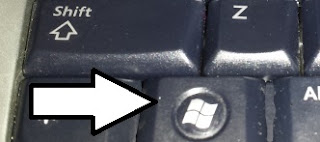
 + A will open the Action Center. + C will launch Cortana into listening mode. + E will launch File Explorer with the Quick Access tab displayed. + H Opens the Share charm. + U launches the Ease of Access Center + Enter launches Narrator.
There’s a long list of the new commands and Microsoft has a nice printable, version available that lists everything.
To download a complete, printable list of Microsoft shortcut keys, click here.
- WS
Google Hangouts 5 Tips And Tricks for Windows Phone, Android and iOS
Written By Micah on Wednesday, June 17, 2015 | 10:39 PM

In the race for being the top application to provide access to internet communication for free, Google has not been left behind.
It has jumped on to the bandwagon with the launch of Google Hangouts.
Google hangouts was preceded by Google talk. Although the services provided were same as those of Google hangouts, hangouts has a lot of new features that qualifies it as a good VoIP app – so much so that the application is now also used widely as a business communication tool among professionals.
If you have not had much experience with the application, you can follow the tips and tricks in order to use the application better.
The application can be used more conveniently with the help of keyboard shortcuts. Pressing the question mark can help you activate or deactivate the microphone at your convenience. Keyboard shortcuts make browsing the web easier and older chat messages are more easily accessed.
Google hangouts can be used to send messages and these can be sent with the help of commands. Typing “/to” before the name of the individual can help you send messages across.
Instead of sticking to the laptop microphone and speakers while you are on a voice or video call, the audio output would be much clearer if a user opts for the usage of headphones.
Corporates draw the most benefits from Google Hangout’s screen sharing feature. The application mirrors this feature from the Skype.
Simply by clicking on the share screen offer, you can share the screen with your friend or colleague and make work easier. Choice can be made between choosing either specific windows or the whole screen.
Google Hangouts can also be a very cost effective means of using VoIP by managing the amount of data you use. This can be done by toggling between normal quality voice calls and HD quality voice calls, which generally trend to consume more data.
- therem
Windows 10 Operating System – Is this the Last Version?
Written By Micah on Monday, May 18, 2015 | 10:41 PM

Rather than keep on rolling out a newer version of the renowned Windows OS, Microsoft is weighing the option of regularly improving the platform via rolling out major and minor updates.
If this is true, Windows 10 will be the last OS from Microsoft. This news came from Microsoft’s own developer evangelist at the Ignite Conference in Chicago a few days ago. According to him, Windows 10 is the last version and as such, everyone at Microsoft is busy working on this OS to make it the best. It is no wonder this OS is taking a little longer, before being released in full to the public.
Windows 10 to be improved through regular updates
This does not however mean that the Windows operating system will soon be disappearing. Hell no! This won’t be happening; rather, Microsoft will simply change the way its improvements are distributed. Instead of coming up with a whole new operating system like with the case of Windows 8 and Window 7, Microsoft will instead roll out improvements, just like with the case of Windows 8 and Windows 8.1.
Windows 10 will be a service that will be delivered on a continuous basis. Updates will keep coming in and improvements as well as new features will come in through small and regular packages.
Windows 10 has been anticipated by many and since Microsoft announced it earlier this year, thousands have signed up for the Windows Insider Program that involves testing the beta version of this OS. These are the first people that Microsoft expects to start using this OS once it is launched this summer.
Windows 10 to power a variety of devices
It is very hard and early to argue that Microsoft will change the Windows 10 moniker. However, this company is full of surprises and we might see something else come in rather than the usual Windows. This cannot however be confirmed as the company only claims that it will focus on updating the OS as well as allow functionality on a variety of devices that include PCs, phones, Xbox, Surface Hub as well as HoloLens.
Microsoft has labeled the new Windows 10 as the future of computing. If this is true, then we may see this OS stay in use for a long time to come.
- ordoh
Candy Crush Saga Will be Bundled by Default into Windows 10 OS

The title must have immediately surprised a lot of readers, because Microsoft operating systems have always been choosy about the software they bundle within.
But, with changing times and things that people love, it looks like Windows 10 is going to take a drastic turn. The team is not only going to introduce new features like a voice assistant, metro apps in a desktop environment and a brand new browser, but also going to loosen their restrictions on the available games. Solitaire, which used to be a fan favorite for many years, was removed from the bundle due to unsaid reasons. Players who love the game have to manually download it from the store. It has been confirmed that the game is coming back once again as part of the OS; but that is not all!
Candy Crush Saga, Really?
It is completely absurd to know as to why Microsoft would go with such a game for their Windows 10 list of bundled games. While it does have a colorful interface and some good puzzles to check out, the game has gained a negative reputation for making players pay too much cash to unlock levels or solve the puzzles. It is a free to play game and personifies the world of Android and iOS where unsuspecting new players are lured into checking it out.
Once they come in and learnt the basics, they will find themselves at ease. After solving a couple of boards, you will soon lose yourself into the game which is when it starts becoming difficult and the number of moves will go down. The only way to continue is to be extremely patient or start paying cash without questions. People love the game and it looks like that’s the factor that made Microsoft include it without questions.
Automatic Installation
In their official blog, the company confirmed that they are always working with partners to bring good games to the upcoming operating system. Windows 10 doesn’t have a release date yet, but a leak from AMD confirmed that it is coming this July.
The official statement confirmed that Microsoft is more than happy to bring such a popular to the operating system on launch. Besides, they added that while classic games like minesweeper and hearts does have their respective places, a game like Candy Crush Saga brings a new lease of life to the platform besides wooing millions of gamers who are so addicted to this title.
- PAU
Windows 10 Upgrade Tips And Tricks – Top Features and Improvements
Written By Micah on Sunday, May 17, 2015 | 11:00 PM

Microsoft is preparing to release the final version of Windows 10 and all the Windows 8 users can’t wait to upgrade to the new operating system. Last fall, the company presented the new Windows 10 in San Francisco and since then, Microsoft released many Insider Preview Builds and the users had the opportunity to take a peek at the features of the new OS.
The missing Start button from Windows 8 made a lot of users very frustrated and they even made petitions to bring it back along with the Start menu. Microsoft complied with the waves of requests and brought it back, but moreover, the users can now customize the Start Menu for a better experience.
Windows 10 Home
Windows 10 Home is a replacement for the basic versions of Windows 8.1 and it will be free this summer. And the happiest users will be those who have a tablet that runs on Windows 8.1 and it’s powered by an Intel processor, but Windows 10 Home will be available also for devices running on Windows 7 Starter, 7 Home Basic and 7 Home Premium.
Windows 10 Mobile
While Windows 10 Home will be an upgrade for Windows 7 and 8.1, Windows 10 Mobile will reach the smartphones and tablets that currently run on Windows RT and Windows Phone 8.1. This mobile version won’t be bought from online stores, but it will come embedded inside the devices that you will buy from now on. However, the Microsoft tablets running on Windows RT and Windows Phone 8.1 won’t be upgraded to Windows 10 yet.
Windows 10 Pro
This is another version of Windows 10, but it comes with advanced features that aim a premium category of consumers: those that are running small businesses. Unfortunately, Microsoft hasn’t given many details about this version, but it will surely interest a lot of app developers.
Windows 10 on Xbox One
The Xbox One console is running on Windows 8, but it has other custom upgrades. Microsoft will roll-out the new Windows 10 to every Xbox One console, but for now, we don’t have any substantial information about the changes for this version, and it’s uncertain yet if the users will be able to download applications from the Windows Store.
Windows 10 Education
Another version of Windows 10 was developed for educational purposes and it won’t be found in stores, but it will be installed on computers from schools and school districts.
Windows 10 Enterprise and Mobile Enterprise
The companies will buy the Windows 10 Enterprise version in bulk directly from Microsoft, but a price for it hasn’t been set yet. Of course, it will have a sophisticated application management, encryption and other features, but we don’t know yet when it will be released.
- PAU
WhatsApp Free Hidden Security Tips for iOS, Android and Windows Phone
Written By Micah on Saturday, May 16, 2015 | 10:23 PM

It’s been a while since the WhatsApp Voice Calling got released for iOS and Android. The feature was recently released for BlackBerry 10 and according to some new rumors it will soon be released for Windows Phone devices as well.
WhatsApp is a messaging application that is used by over 800 active users to send messages, videos, photos etc. to their loved ones. This means that those messages, videos or photos may be quite personal and you don’t want them to be seen by everyone.
Today we’re going to give you a few hints that will help you improve the privacy settings on your WhatsApp.
Hiding Blue Ticks
One of the features that many people hate on WhatsApp is the “Blue ticks”. This feature allows the recipient to know whether you’ve read or not the message(s) (s)he sent you. This feature can be disabled by going to WhatsApp Settings->Account->Privacy and unchecking the “Read receipts” option.
Backing up the WhatsApp conversations
By default, the WhatsApp application is making a backup of your WhatsApp conversations everyday at 4AM. However, you can do it manually anytime you want by going to WhatsApp Settings->Chat Settings and tapping on “Back up chats”.
Hiding WhatsApp pictures from Photos/Gallery
Whenever you receive or send photos on WhatsApp, those photos are automatically saved in a folder on either the internal storage or microSD card. This means, that if you borrow the device to someone and (s)he takes a look at your Photos/Gallery application will be able to view all the photos you’ve sent/received on WhatsApp.
First of all, download and install a file manager application such as Cabinet Beta or ES File Manager. After that, open the file manager and go to the WhatsApp/Media/WhatsApp Images directory. Here, you will need to create a new file named “.nomedia” and save it. After creating this file, all the WhatsApp images that are stored in here will not be shown in the Photos/Gallery application.
After this, your WhatsApp images will not show up any more in your Gallery/Photos app.
Locking WhatsApp
As you already know, WhatsApp doesn’t come with a password or any type of locker. With other words, in case someone gets his hands on your mobile device, he will be able to open the WhatsApp application and read all the messages you’ve sent to your friends. However, there are a few applications which will add some security to the WhatsApp application by adding a password to it. For example, you can use either LOCX or AppLock. Both of these applications will be able to lock your WhatsApp application and whenever you will try to open it, you will have to enter the password to unlock it.
Hiding the “Last Seen” time
We all have friends that overwhelm us on WhatsApp. As soon as they see that we’re online, they will start bugging us with questions or their problems. However, there are days when you don’t wish to be disturbed by these types of friends. This is when you will want to disable the “Last Seen” status.
Disabling the Last seen time stamp is helpful for those who do not want others to know how often they are online on WhatsApp or, when it’s the last time they used it. Below we’ll show you how to disable it.
Open WhatsApp and go to Settings->Account->Privacy->Last Seen and select “Nobody”. This way, nobody will know when you’ve been last seen on WhatsApp.
Hiding your WhatsApp Profile photo from an Unknown Contact
By default, the WhatsApp profile photo is displayed to anyone that knows your mobile phone number. However, you can hide the profile image by going to WhatsApp Settings->Account->Privacy->Profile Photo and select “My Contacts”. This way, you will share the profile photo only with the persons you have in your contact list.
- ordoh
WhatsApp Free Windows Phone Download With MP3 – What’s Best For?
Written By Micah on Wednesday, May 13, 2015 | 12:08 PM

WhatsApp released v2.12.20 for Windows Phone and, which has new awesome features, and one of them is the possibility to share MP3 files. We must warn you that this version is in beta and you shouldn’t get too excited, because it may have some errors that could prevent the application from working properly.
WhatsApp doesn’t have too many Windows Phone users, compared to Android and iOS, but the developers don’t forget to update the version for this platform, every once in a while. A few days ago, on the official page of WhatsApp was uploaded a new beta version for Windows Phone with the option to share MP3 files stored on your device using a dedicated icon, and when you’ll select the right icon, you will be given two options: Audio and Album. If you select the Audio option, you will use a file selector with which you will browse your music library and you’ll choose which MP files you want to share. After sharing them, you have the possibility to forward them again, or to remove them, but you can’t save them. To share videos and photos with your contacts, use the Album option. You will be able to share photos taken with the Lumia Camera v5 application, or any other photos or videos.
The v2.12.20 of WhatsApp for Windows Phone has other changes too, such as the option to use the same color theme as the phone, instead of a green theme. You will be able to select multiple chats and delete/archive them and if the read receipt option bothers you, then you can disable it. This way, your friends won’t know that you’ve read their messages.
The Voice Calling features hasn’t showed up yet on the Windows Phone version, and for now, only the Android and iOS users can make free voice calls all over the world. But, there were rumors about the chances to get this feature in the future, because the developers asked the users of an Italian forum to help them translate some texts related to Voice Calling.
Remember that you have the Web feature in case you want to send messages from your computer, but you will need to install one of these browsers: Firefox, Opera or Chrome and when you see the QR code, open WhatsApp on your smartphone and go to the Web option, then scan the code using the device’s camera.
- ordoh
Windows 10 Leaked Screenshots Show 3D Live Titles, Improved User Interface
Written By Micah on Monday, May 11, 2015 | 11:03 AM

Microsoft is leaving no stone unturned with their Windows 10 operating system.
They had to face a lot of criticism with Windows 8, but with all the errors rectified, this is easily the best OS to launch in a long time now.
Whenever the company introduces new ideas, people have a strong opinion about it. The jump from Windows 98 series to the XP was not so welcome, but now the consumers say that it is the best operating system to land for computers. A similar issue was faced when Vista got launched, because it occupied majority of the systems’ storage space on the hard disk and made it tough for the users to focus on other tasks. Microsoft sprung back to form with the Windows 7 and now comes their next that is going to finally make Metro UI stylish again. And, it is also going to be the one that will finally make an OS designed for keyboard, mouse as well as a touch screen interface.
Leaked Screenshots Confirm 3D Titles
When the entire world and big tech companies including Apple, Google were obsessed with adding mesh layered icons, Microsoft took a bold step forward by introducing a flatter design. The idea caught on and every website started following it. Even the newly launched iOS 8 and Android 5.0 Lollipop material designs follow the same pattern set by the company.
They did follow the flat pattern, but a leaked screenshot from a Chinese website IT Home confirms that Windows 10 will have 3D live tiles. While they still maintain the flat design without any fancy layers being added to it, the tiles will now have the capability to display an image as a rectangular box. They can be fully rotated in 3D style and will have different information on each face, which is what we could assume based on the leaked images.
July Release
Leaked information from AMD confirms that Windows 10 will get launched in late July. At the moment, the technical preview is live, but it doesn’t have any information with regard to the 3D tiles so far and the modified user interface. They have not modified it completely but rather made it more accessible with an intuitive design.
The search function has been revamped to make it easier for you to find things you need and apart from all this, you can also access all the Metro apps with the comfort of your desktop. It’s a feature that PC users would adore.
- ordoh
3 New Features Revealed in Windows 10 Technical Build
Written By Micah on Thursday, May 7, 2015 | 11:46 PM
.jpe)
Microsoft Windows 10 is the talk of the town because the operating system has a lot riding on it.
The company’s announcement that they might give it for free added more hype to the already viral news.
From the looks of it, Windows 10 is a beautiful operating system without doubt. The user interface has been revamped so that users could access the information they need without much difficulty. Another advantage is that the metro apps which were secluded to the Start screen is now integrated into the desktop interface which finally makes the OS on par with the iOS and Android mobile platforms.
You can readily check mail, shop for items or play games as you would do on a tablet without leaving your comfortable desktop zone. The latest technical build revealed more new features. The top three from the list are:
Completely Revamped Settings Interface
The settings panel is an important part of Microsoft’s operating system because it is the area where people tweak the computer to match their requirement. Windows 10 has tried its best to make it as simple as possible. The interface, icons and the look has been completely revamped. It looks very much like the metro apps that you have used earlier in Windows 8.1 with all the colors, slider bars and more. It makes it easy to change appearance, wallpaper, sound and power options among everything else.
All New Battery Icon
The battery indicator is useful for tablets, laptops and phones that run on Windows 10. It also helps laptops and allow users to be notified in case the battery is going to drain out in the next few minutes. The developers confirm that they have revamped it and made a lot of tweaks so that the exact remaining time is displayed rather than something random. The power options, including battery saver, will be available near the icon.
Horizontal Volume Indicator
The volume bar which is often found to be vertical in all older version of the Microsoft operating system has now been made horizontal. We are not informed whether this will be customizable but the horizontal design doesn’t bother you much. It is intuitive, easy to use and lets you adjust the volume either manually using the mouse button or by simply using the volume control keys on your keyboard. The upcoming technical builds for Windows 10 is expected to reveal more new features of the OS.
- ordoh
Two Ways to Hide Disk Partitions in Windows
Written By Micah on Saturday, May 2, 2015 | 1:48 PM
Protecting data has always been of importance and before encryption has been available to masses, one way of protecting the important data has always been hiding it from plain sight. Though this is not a fool-proof way to protect one’s data, it is still a legible way to quickly protect not-so-important data without dealing with complex passwords, encryption, and stuff. Considering that, hiding drives or partitions in Windows is not at all hard and can be helpful in different scenarios like when you are lending your laptop to a guest, when you want to quickly hide several folders in a partition, etc.
No matter what the reason is, here are two different ways to hide your Windows drives or partitions. Technically we are not hiding a drive but unmounting it. As soon as you unmount a drive or partition it becomes invisible in the file explorer.
Hide Drive Partitions Using Command Prompt
Hiding drive partition using Command Prompt is easy. First, press Win + R, type
cmd and press the Enter button. Once the command prompt has been opened, type diskpart and press the Enter button.
The above action will open the Diskpart console. Enter the command
list volume to list all the drives in your Windows system.
Once all the volumes are listed, select the volume you want to hide using the command below. Don’t forget to replace “#number” with the actual drive number. For instance, I want to hide my D drive, so my drive number will be 3.
select drive #number

After selecting the drive, you need to remove the drive letter in order to hide the target drive. To do that, use the command below. Don’t forget to replace “driveLetter” with the actual drive letter. In my case, the drive letter will be “D.”
remove letter driveLetter

Once you’ve executed the above command, the drive letter will be removed, and as a result you can no longer see the drive in File Explorer.

If you ever want to unhide or mount the drive, then use the below command while replacing “driveLetter” with the actual drive letter.
assign letter driveLetter

Hide Drive Partitions Using Disk Management App
If you are uncomfortable using the command prompt approach, then you can use the built-in Disk Management utility to achieve the same task. To start, press “Win + X” and select the option “Disk Management” from the list of options. If you are using Windows 7 or Vista, you can search for the same in the Start Menu.

Once the Disk Management utility has been opened, right click on the drive you want to hide and select the option “Change drive letter and paths.”

The above action will open the “Change drive letter and paths” window. Here click on the button “Remove” in order to remove the assigned drive letter.

As soon as you click on the “Remove” button, Windows may display a warning window. Simply click on the “Yes” button to continue.

That’s all there is to do. With the above action, you have successfully unmounted or hidden the drive or partition on your Windows system. In fact, in the Disk Management utility you will see that drive is still present but has no drive letter assigned. Thus, it will not be visible in the File Explorer.

If you want to unhide the drive in the future, right click on the target drive and select the option “Change drive letter and paths.” Now click on the “Add” button to add the drive letter.

The above action will open the “Add drive letter or path” window. By default, Windows will automatically select the drive letter. If you want to change it, simply select the drive letter from the drop-down menu and click on the “Ok” button.

With this action, the drive letter will be reassigned, and you can find your partition in the File Explorer.

That’s all there is to do, and it is that simple to hide drives or partitions in Windows. Hopefully that helps, and do comment below sharing your thoughts and experiences about using the above method to hide drives in Windows.
Android App Support to Windows 10 Update by Microsoft
Written By Micah on Thursday, April 30, 2015 | 11:16 PM

Rumor has it that Microsoft will soon spread the word that all Windows 10 gadgets (PC, tablets and of course smartphones) will run Android applications. This statement will be corroborated at the Build developer conference, which will take place in San Francisco.
However, Thurrott is skeptical about Microsoft’s strategy and states the following: “But letting Android apps run on Windows is a completely different matter. Indeed, it is the literal opposite of opening up universal apps to Android. And I question the logic of this strategy” were his words.
But if these rumors prove to be true, Microsoft will be able to actually fix the platform’s small app environment, something that really makes Windows phone users a bit anxious. This means more access for the users to all sorts of applications that they could not access before. But users will just have to wait and see how exactly Microsoft will manage the Android applications. The rest of the devices that operate on Windows 10 will also profit from the Android apps.
Thurrott declares that this new Android compatibility is a low blow for developers. This means that all the specialists, who have worked hard on Microsoft’s platforms, should move onwards, since there is nothing left for them to do. He strongly believes that by including Android app support for Windows 10 will make Microsoft’s platform zip. He also claims that this is a complete collapse and Windows will loose its value even more.
At the Build convention, Microsoft will also unveil some technical fine points of its platform. It is also expected to launch a few code samples for developers to test. And let’s not forget the fact that Microsoft announced Universal Windows Apps, a strategy that was believed to bring a more familiar program cycle to computers, tables and phones at the previous Build convention back in 2014.
- PAU
The Best Windows 7/8 Shortcuts, Tips and Tricks
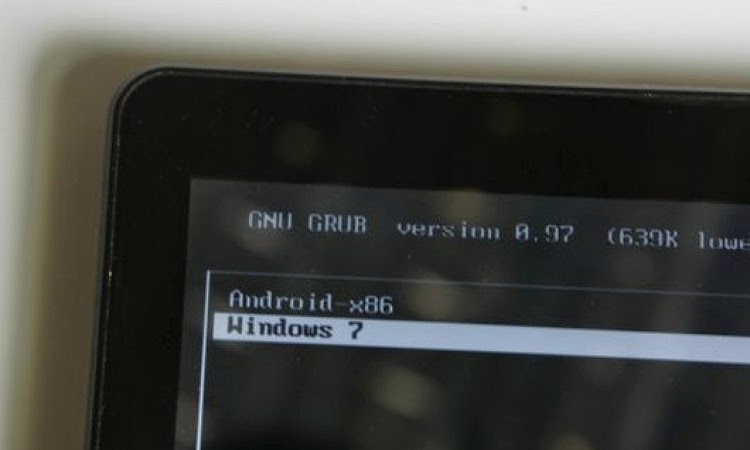
Even though Microsoft recently released a new Windows 10 operating system, the stable version of this OS is not yet available to the public.
At the moment, users of this OS can access a build version that is still in beta. If you are a developer or simply an enthusiastic user, you can sign up for the Windows Program and join the hundreds of people who are downloading this preview version of the latest Microsoft OS.
Despite the anticipated release of the stable version of Windows 10, the use of Windows 7 and Windows 8 is still at large, especially the former OS. Windows 7 users are more than those using Windows 8 and this can be attributed to the fact that this OS was heavily criticized by experts and users likewise for its interface that included the omission of the Start menu button. However, if you are using Windows 7 or Windows 8, you might want to learn or add more tricks and tricks to the ones you already know.
Using Windows shortcuts for navigation and doing other cool stuff
One of the best ways of navigating through Windows is with the help of shortcuts. Using the many available shortcuts on the keyboard and others that involve entering specific commands, you can do lots of cool stuff on your Windows PC and in a very quick way. In this line, here is a list of the best Windows 7/8 shortcuts, tips and tricks that you could use on your way to becoming a pro user of this Microsoft-based OS.
Using the Windows key
If you are one of those users who feel that the Windows key is a superfluous key on your keyboard, you are very wrong. This key has lots of supportive functions in addition to many other wonderful uses. Below are some of the most amazing shortcuts of the Windows key.
- Windows +D will help you minimize all open windows
- Use Windows + E to open your PC’s explorer
- The Windows + R shortcut will help you start the Run prompt
- Windows + T will help with scrolling through the taskbar while Windows + P is meant for changing the display configuration
- Using Windows + Tab, you can easily look like a pro by scrolling through open windows in 3D.
- Use the Windows + Arrow keys to snap an open window all over the screen.
Other Windows 7/8 tips and tricks
There are other tips and tricks that are very little known to many users of Windows 7 or 8. When you press the Alt + Print Screen shortcut, you will be able to capture a screen shot of the active window on the clipboard. You can also calibrate your screen by simply clicking on the start button then follow it by keying “DCCW” in the search bar and then hit Enter.
The Ctrl + Alt+ Tab will open the dialogue that is opened by Ctrl + Tab but this time the dialogue is kept alive on the screen so that you can use the arrow keys to select a window and Enter to open it.
Other shortcuts include Windows key + Up/Down to maximize and minimize and open window, Windows key + shift + right/left arrow for moving windows to other monitors as well as Alt + Enter to maximize full screen apps in windowed mode.
Do you know of any other Windows 7/8 shortcuts?
- PAU


