
Latest Post
Showing posts with label WeChat. Show all posts
Showing posts with label WeChat. Show all posts
How to Move WeChat Messages to your WhatsApp Account – Is it Possible?
Written By Micah on Friday, May 8, 2015 | 10:49 PM

WhatsApp and WeChat are two of the most popular messaging applications there are today.
Using either of them, it is possible to send free messages as well as make free calls to any other person as long as s/he is using the app.
These services make connecting with each other very easy. WeChat and WhatsApp offer almost the same services where users can send text, voice, video as well as picture messages on both platforms. Furthermore, it is possible to make voice calls on both platforms, but at the moment, only WeChat supports video calling. WeChat also offers further features that include Moments, where users can share photos with friends, comment, as well as like them, which is similar to the timeline available on Facebook.
WhatsApp voice calling feature is still very young in the market. In the past, many people have been using both applications as far as messaging and voice calling is concerned. This is so because WeChat offered both services, but WhatsApp only offered instant messaging services.
If you have installed these two applications on your Android device, you may want to move a certain message from your WeChat conversations to WhatsApp for one reason or the other. While there is no direct way of displaying WeChat messages in your WhatsApp account, there is still a trick you can use to get your WeChat chats right onto your WhatsApp account. Here’s how to do it.
Move WeChat messages to WhatsApp account using a Cloud service
If you are connected to any cloud program, it is easy to move your messages between these two applications. So, if you aren’t, make sure you create an account with any popular cloud-based program such as Google Drive and take in the data on your WeChat account and upload it on the cloud database. Also ensure that you can access the folder or device where you have installed WhatsApp.
Copy the data you want from the saved WeChat data and paste it to the appropriate WhatsApp folder associated with the file you are moving, whether it is a text, video, image or voice message. When you restart your WhatsApp account, you should be able to see these messages in the respective folders they were moved to.
To be successful with this process, you must be connected to a suitable internet connection or else, errors will be plenty. Nonetheless, the process is still very simple and easy with very little effort required. You can also use this cloud service to move other files between WeChat and WhatsApp, for instance, contact details.
- ordoh
How to recall sent messages in WeChat [Tip]
Written By Micah on Friday, May 1, 2015 | 12:11 AM
Not all messaging apps have this and it’s really great to know that you can do this in WeChat. It can be really handy especially for wrong sent messages as well as for messages that you do not want to appear in your contact’s chat log.
So if you still do not know how to recall sent messages in WeChat, just refer to this guide.
How to recall sent messages in WeChat
- On your smartphone or tablet, open your WeChat app.
- Next, send a test message to any of your contacts. Write your message on the text field and then press “Send”.
- Now that your message has been successfully sent, you will be given a maximum of 2 minutes to recall it. So within that time span, you must recall your message or else, it will permanently appear on your contact’s chat log.

- To recall a message, just long-press on it and once you see the message menu, select “Recall”. You’ll then get a notification that your message has been successfully recalled.
So that’s it. The good thing about this option is that it’s not only limited to messages in text format. You can also recall images, stickers and emoticons.
As for those who are currently using WeChat, do not forget to try out this feature as it is available on both the Android and iOS versions of the app.
- dottech
How to easily translate messages in WeChat [Tip]
With the direct message translation, you can instantly translate any text or message that you have sent or receive via WeChat into the default language that you’ve set on your device. So, for example, if you receive a message in Spanish, then you can directly translate it into English.
How to easily translate messages in WeChat
- Launch your WeChat mobile messaging application.
- Once you’re on the messaging app, open or load any of your existing conversations. You can also try sending a test message to one of your contacts. Make sure to send your test message in a different language.
- After sending your message, just long-press on it and on the menu that appears, select “Translate”.
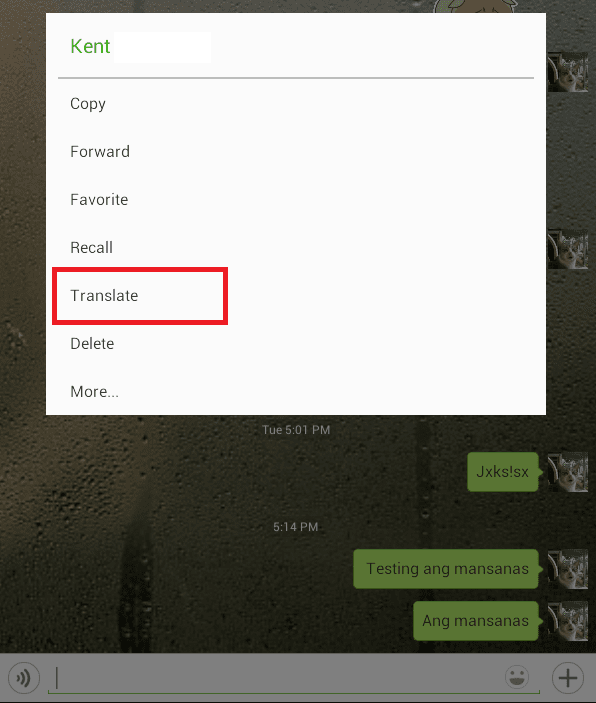
- Wait for a few seconds and that’s it. The message that you’ve selected will be automatically translated into the default language of your device. The translation will be placed right below the original message or text.

- To restore the old message without the translation, just long-press on it again and then on the menu that appears, select “Show Original”.

It’s really that simple. So go ahead and give it a try.
- dottech
Download Latest WeChat and Enjoy the Best Features and Useful Tips and Tricks for Novice users
Written By Micah on Tuesday, December 23, 2014 | 11:14 PM

There is always a first time for everything and if it’s your first time to download the wonderful WeChat application, then there is so much you need to know about this app.
First, you need to understand that this is no ordinary instant messaging app. It has the abilities of a social networking site or app and with it, users can also make quality voice and video calls to other users of the app at no cost, of course apart from the usual internet charges levied by your local mobile carrier.
Downloading and Signing Up for WeChat
To get the genuine version of the app, visit the official app store of your specific device and download the WeChat application. For Android users, check out the Google App Store, while the users of iOS can check out for this app in the iTunes App Store. The process of downloading should take a minute or so, provided you are connected to a reliable source of internet, preferably 3G, 4G or Wi-Fi.
Post installation; launch the app to start the signing up process, which again should take a few moments as the only detail required is your active phone number. You’ll receive a verification code on your phone and you can use it to complete the sign up process.
Adding Friends
This is very simple. Go to the application’s contacts menu and select the “Add” option located in the upper right corner. In addition, key in their WeChat ID or use QRcode where you can scan and enter in the provided space.
In the search bar, enter the WeChat ID of your friend and add them. Alternatively, you can rely on your WeChat contacts list which will show all of your phone’s contacts with a WeChat account.
Start Chatting on WeChat
To initiate a chat with a friend, go to the name of your friend in your contacts list and select it. From the resulting menu, you can choose to either message or call. You can include numerous stickers in your conversations to lighten them. These you can get from the Smiley icon located next to your chat box.
Meeting Random People
If you are an enthusiast of meeting new people, WeChat is your app, as this app has some amazing features you can use to meet new users. Using the shake your phone feature, you can meet other people shaking their phones simultaneously with you. You can also use the “Look around” feature to find people within your location using WeChat.


