
Latest Post
Showing posts with label Firefox. Show all posts
Showing posts with label Firefox. Show all posts
Stop Those Annoying Browser Prompt Asking For Your Location or to Send Notifications
Written By Micah on Tuesday, January 30, 2018 | 3:17 PM
If you've grown tired of answering those annoying browser prompts
every time a website wants to show you notifications or know your
location, you can turn the messages off forever with a few clicks in
every major browser. Scroll down below for your browser and where to
locate the appropriate settings in Chrome (desktop and Android), Firefox,
Opera, Edge, Internet Explorer and Safari (desktop and iOS).
Chrome
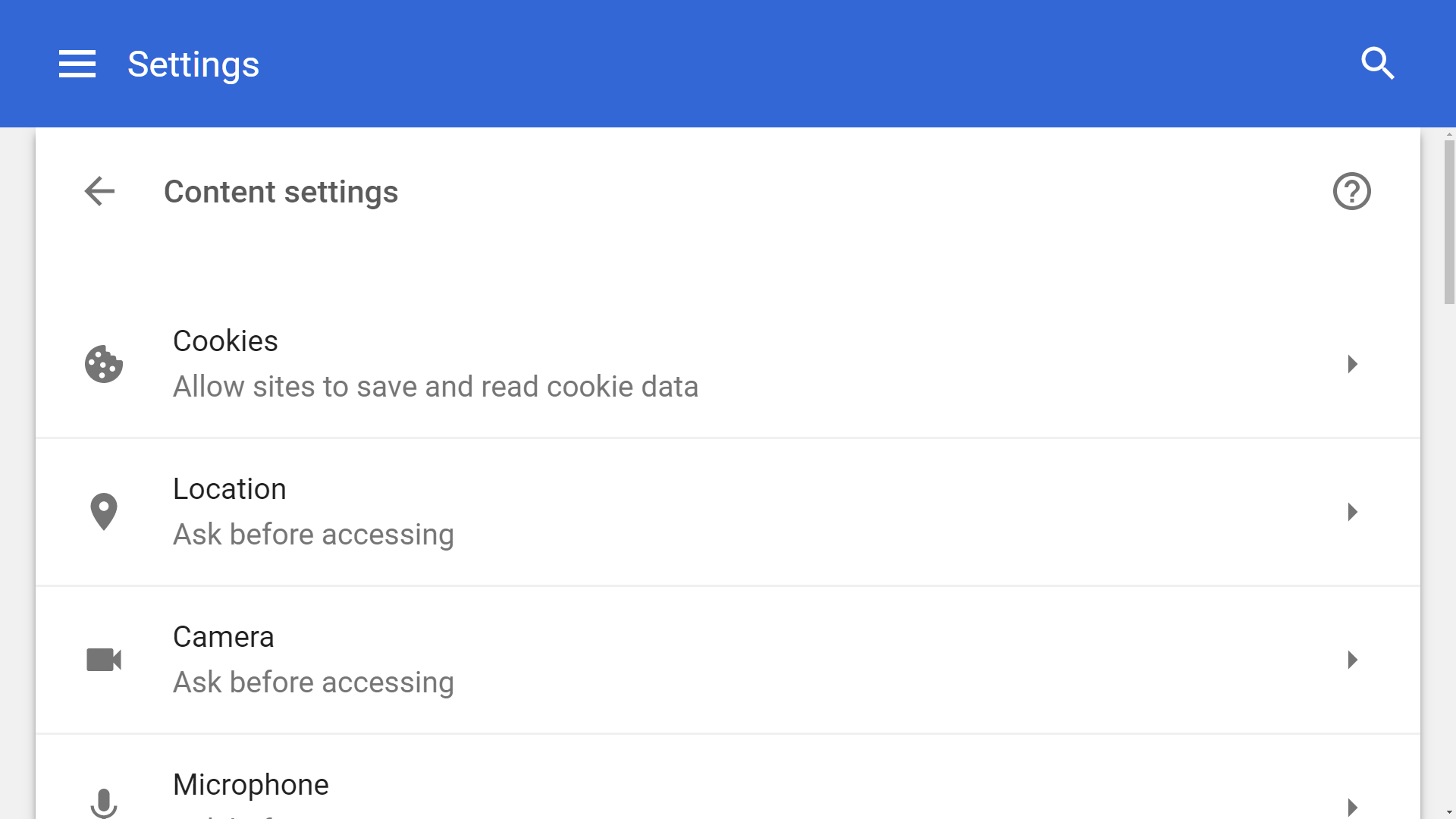
From the dropdown menu, select Settings > Advanced (scroll down) > Content settings.
From Chrome's content settings you can click into 'Location' and
'Notifications' separately to disable each. This will block the pop-ups
forever while also preventing websites from knowing your location and
sending you notifications.
Chrome (Android)
The exact same settings exist on the mobile version of Chrome found
in Android devices. Although we wouldn't outright disable location
settings on the browser like we'd do on the desktop (for obvious useful
reasons), if one of your favorite websites annoys you with these kind of
prompts, you can always disable them on a per-site basis.
From the Chrome menu button on the top right corner, select Settings.
Under Settings, scroll down to Advanced > Site settings. There you
will find discrete settings for both Location and Notifications, the
default is set to "Ask first," you can set those to "Block" which will
stop sites to prompt you for either.
Firefox
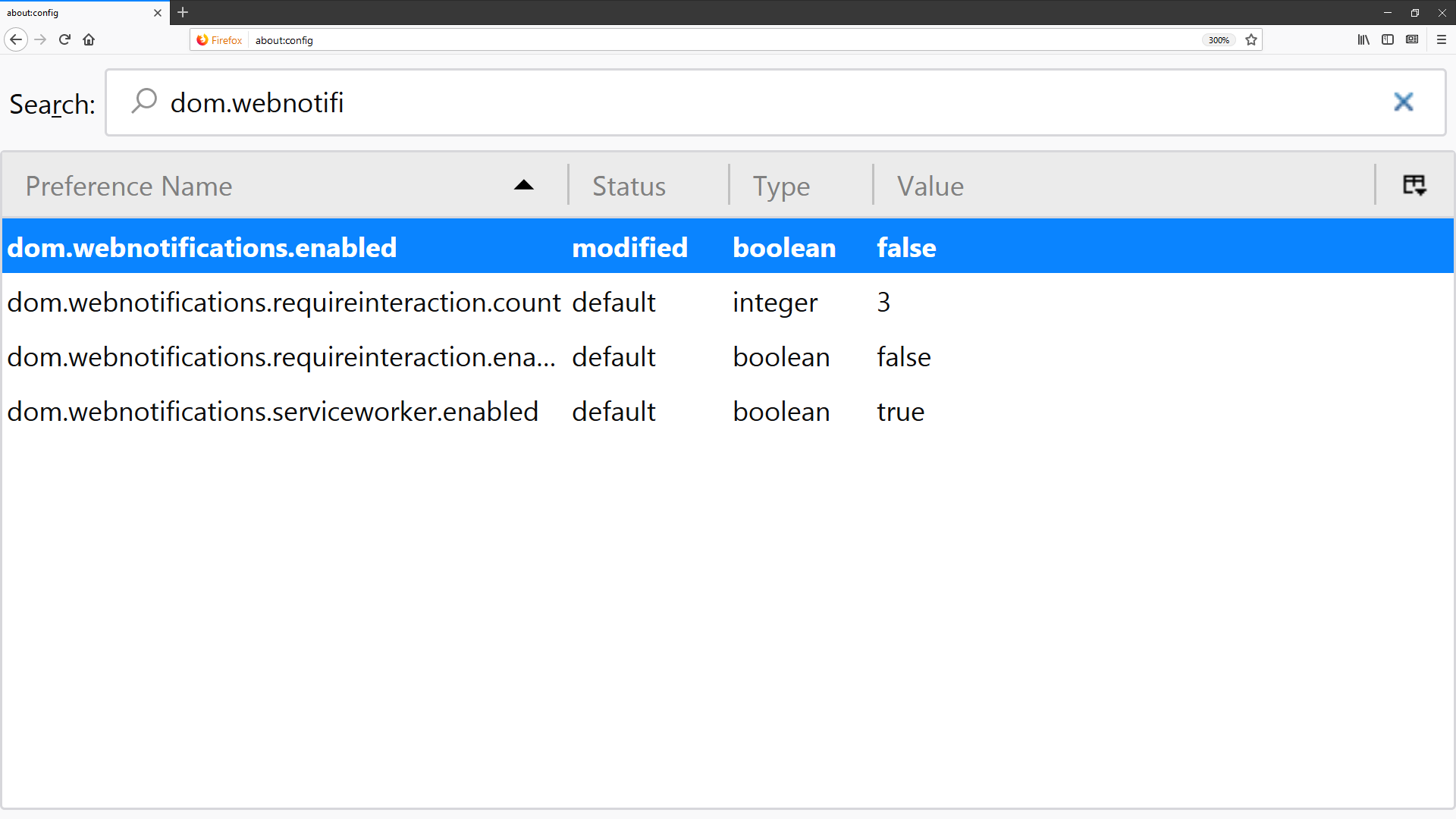
In the address bar type "about:config" and hit Enter. Accept the risk when prompted.
If you made it under the hood safely, use the search bar to find the following entries: dom.webnotifications.enabled and geo.enabled.
Double-clicking on each entry will set their values to false, which
is what you want to do if you're trying to disable the pop-ups.
Opera
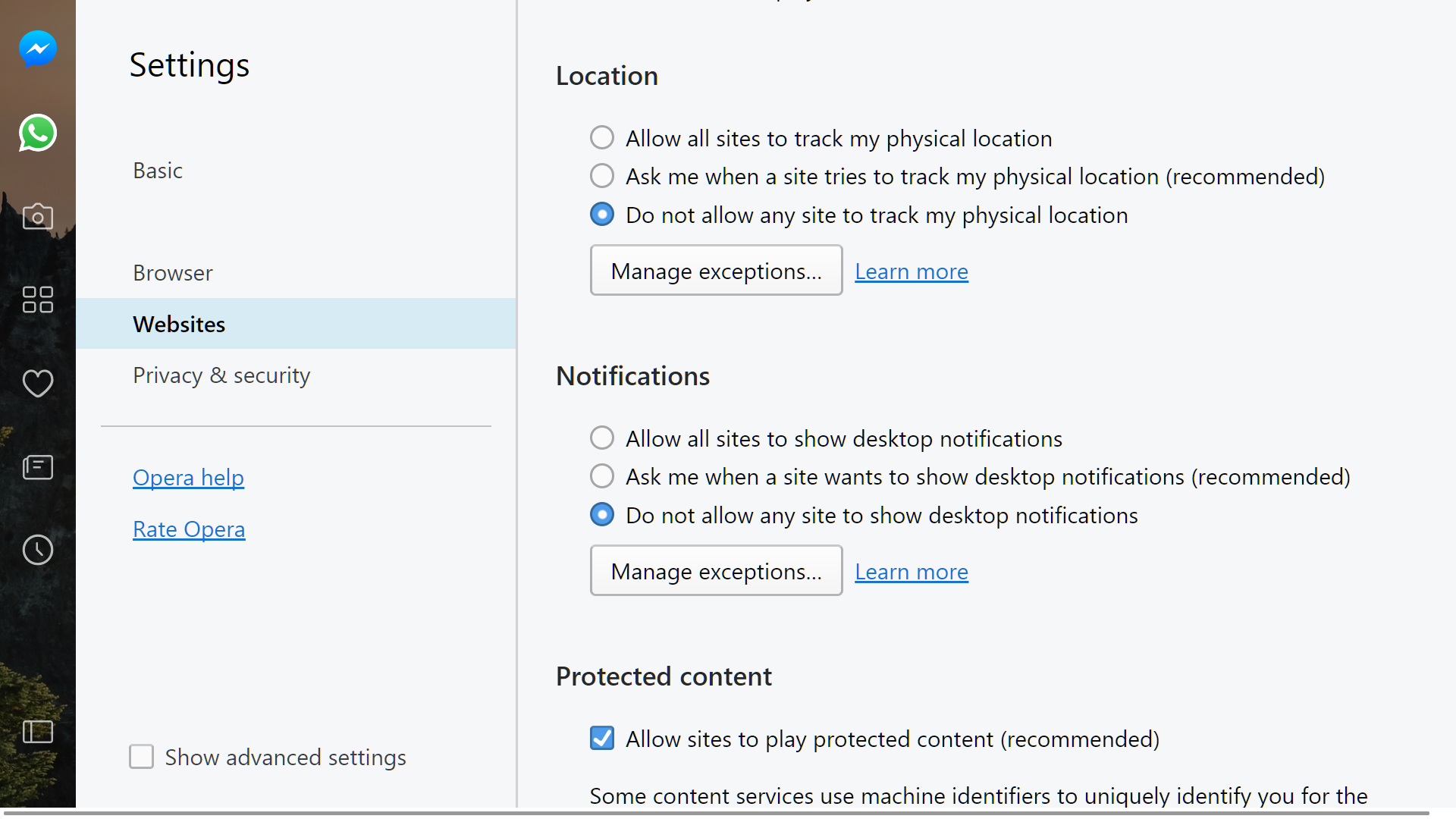
From the drop down menu, select Settings and then go to the Websites tab.
Location and notification prompts are both listed halfway through the
website section of Opera's menu settings -- set both of them to "do not
allow...".
Microsoft Edge
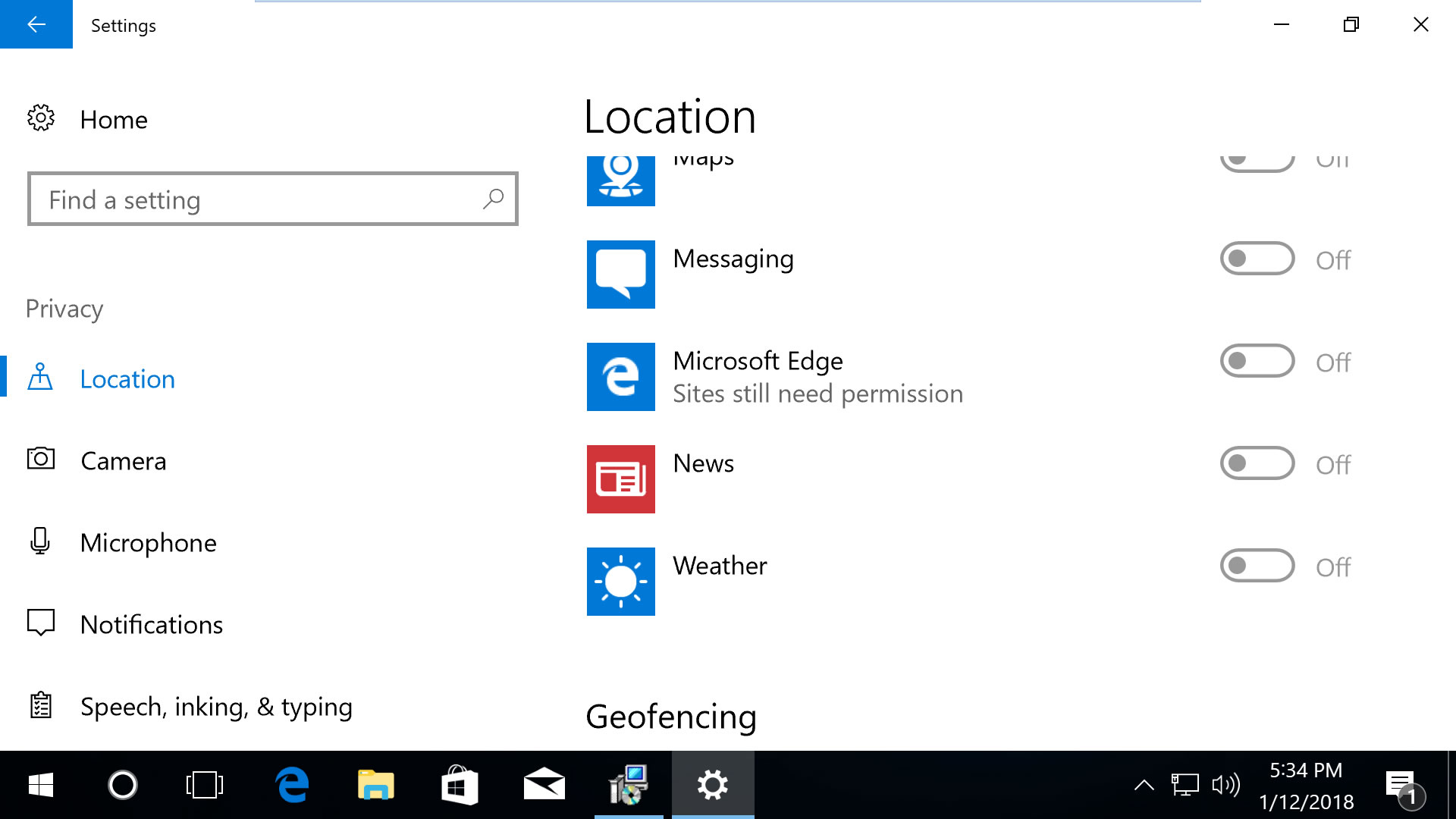
Scroll down in this section to 'Choose apps that can use your
location' and you can customize the settings for Microsoft Edge along
with other applications. Note that disabling 'Location service' on the
top of the same page will block all apps from using your location.
Open Edge's settings menu, go to View advanced settings > Notifications (manage).
Websites that can show notifications will be listed here so you can
customize which ones are able to send them. Likewise, from the privacy
settings in the Windows 10 menu mentioned above, the notifications
section will let you block them from all applications.
Internet Explorer
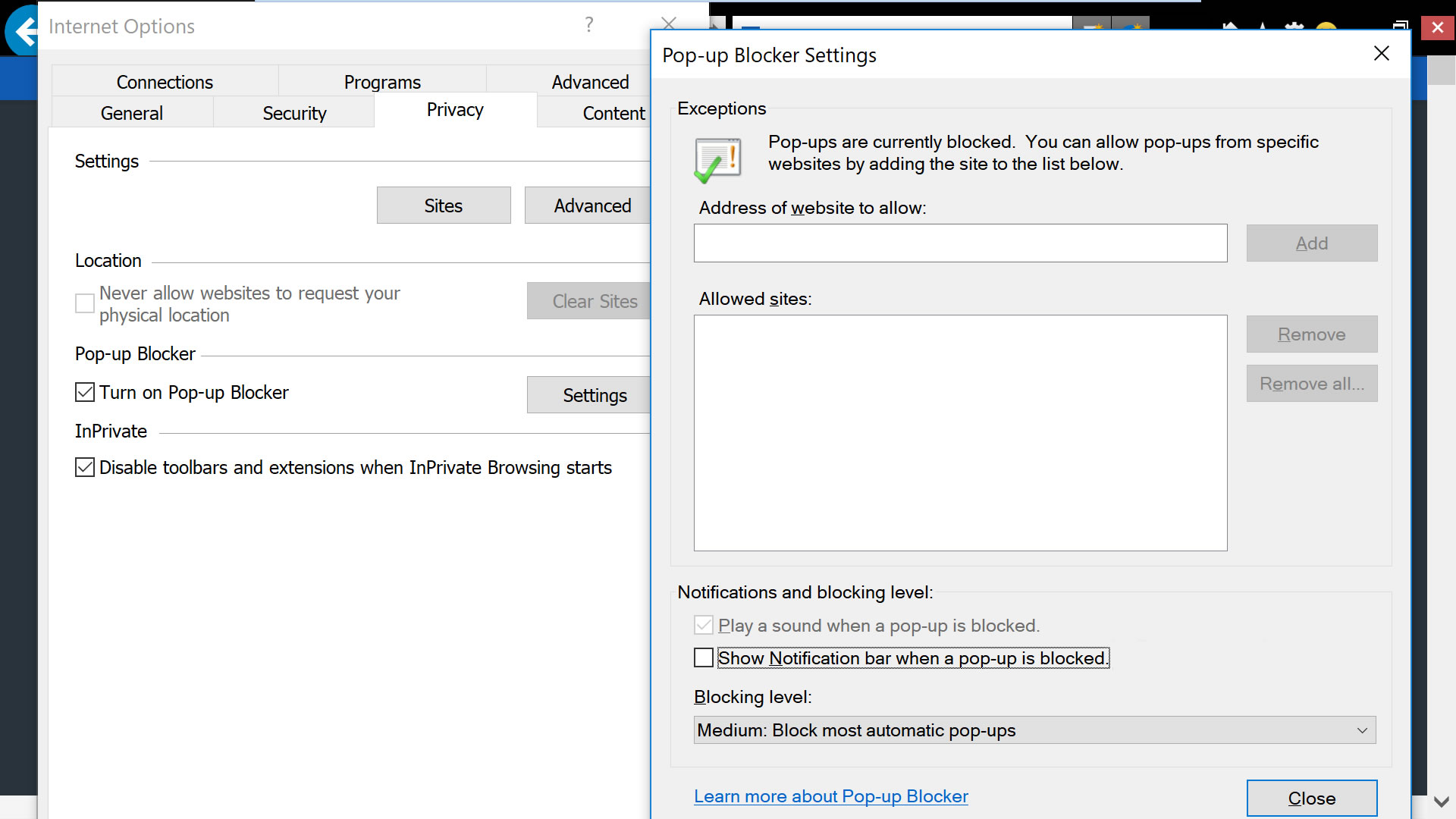
Open IE's dropdown menu, go to Internet options, select the Privacy tab.
In the privacy tab, uncheck 'never allow websites to request your
physical location' and then click into "Settings" for the option to
uncheck notifications from when a pop-up is blocked (this isn't the same
as the notifications blocked in other browsers but nonetheless
noteworthy).
Safari (macOS)

From Safari's drop down menu, select Preferences then go to the
Websites tab. On the left side menu you'll find Location and
Notifications.
On Location, you will find per website settings based on the
currently opened tabs. But to deny location to all websites, on the
bottom right corner select where it says "When visiting other websites:"
select Deny.
On the Notifications settings, uncheck the option where it says
"Allow websites to ask for permission to send push notifications."
Safari (iPhone /iOS)
On iOS devices, location settings are more strictly managed by the
operating system. Go to Settings > Privacy > Location Services.
Find the setting for Safari Websites and set it to "Never."
- techspot
Mozilla Set to Limit New Features of Firefox Web Browser to Secure Sites
Written By Micah on Thursday, May 7, 2015 | 11:42 PM

Mozilla still remains a top option when looking at the security aspect of web browsers.
When talking of web encryption, Firefox has been at the top of its game for years and it seems this is nowhere near the end.
According to a recent announcement by the company, it seems sites that enable HTTPS will be favoured more than those with plain HTTP. This is aimed towards ensuring that security of sites and users remain the top priority of the browser. What this means is that only sites that are encrypted will be able to use the latest features of Firefox web browser. This will stop any insecure website from accessing or exploiting the full potential of Mozilla’s web browser.
Firefox to avail new features to secure websites only
Even though this might sound easy on paper, it is not an easy thing to implement. A lot of coordination must take place before this happens. This includes getting an OK from the community regarding the date of the update and after this is agreed, the set of new features will only be availed to those websites that are secure or encrypted. This coordination will also involve the decision on which features are regarded as “new” in the latest version that only secure websites will be allowed to access.
Changeover to be slow and gradual
According to a senior Mozilla official, it is possible that users of Firefox can still access features like CSS and a bunch of other rendering features even when using insecure websites, but they may not be able to access certain new hardware capabilities. The process will be slow and gradual and in the end, Mozilla will phase out any access to features of the browser when using a non-secure website. This is definitely good news for some sites, but it will break down some sites as well.
While the above limitations might seem a little harsh for some sites, the company is also considering a string of “softer limitations” on functions when using any non-secure website. This is already happening as far as microphone and camera access is concerned. Another thing the company will be looking at is a way to limit the scope of non-secure cookies. All these are aimed at ensuring that the web developing community out there sticks to being secure at all times.
- ordoh
WhatsApp Free For Computer via Google Chrome, Firefox or Opera
Written By Micah on Thursday, April 30, 2015 | 11:13 PM

We can clearly say that WhatsApp is the mobile application of the moment. It has 800 million active users all over the world, but every day, around million people are registering to this app. In 2014, WhatsApp was purchased by Facebook for 19 billion dollars and since then, we’ve seen a lot of chances in this great mobile application.
There were some changes that not many users enjoyed, such as the blue ticks for read receipts, making lot of users to install WhatsApp Plus application on their mobile devices.
However, today we’re not going to talk about WhatsApp on mobile devices and instead we’re going to talk on how to use WhatsApp on your computer. It’s been a while since a lot of users have asked the WhatsApp developers to release a full WhatsApp version for PC, but that didn’t happen.
Instead, the developers have released a “WhatsApp Web” feature which can be used to log into your WhatsApp account on your PC via Google Chrome, Firefox or Opera.
Using WhatsApp Web on your PC
As we told you above, WhatsApp Web is not a full version of WhatsApp. This means that in order to use it, your device will still need to be connected to the internet. At the same time, WhatsApp application from your mobile device will need to run on your device or else WhatsApp Web will not synchronize and it will not work.
With other words, in case your mobile phone runs out of battery, WhatsApp Web will not function anymore.
So, in order to use WhatsApp, you will need to use one of these three browsers on your PC: Google Chrome, Firefox or Opera. WhatsApp’s developers said that they are going to support more browsers in the future but for now, only these three are working. After opening one of these three browsers, head to web.whatsapp.com and you will notice a QR code somewhere on left-middle of the page.
In order to log into your WhatsApp account, you will have to scan that QR code with your mobile device. To scan it, open WhatsApp on your mobile device, select menu and tap on “WhatsApp Web”. Once you tap on WhatsApp Web, the camera will open, which will allow you to scan the QR code. When the QR code is scanned, you will be automatically logged into your WhatsApp account.
However, as we told you above, you are quite limited and you will need to keep the WhatsApp application running on your device and at the same time, the device needs to stay connected to the internet.
You will be able to send files, take photos with your webcam, record short voice clips and send emojis.
Have you used WhatsApp Web on your computer yet? Tell us your thoughts about it!
- PAU
Funny Firefox Tricks You Should Know
Written By Micah on Sunday, December 7, 2014 | 10:49 PM
Here are Some Funny Firefox Tricks

To perform these tricks open your firefox browser and copy/paste the following in your address bar
- chrome://global/content/alerts/alert.xul
This will show you dancing firefox.Your firefox window will automatically popup anywhere at screen.
- · chrome://browser/content/browser.xul
This will open another firefox within in a new tab.So you will have firefox within firefox.
- · chrome://browser/content/preferences/preferences.xul
This will open firefox options dialog box in new tab.
- · chrome://browser/content/bookmarks/bookmarksPanel.xul
This will open your firefox bookmark manager in new tab.
- · chrome://browser/content/history/history-panel.xul
This will open your history in new tab.
- · chrome://mozapps/content/extensions/extensions.xul?type=extensions
This will open your extensions tab in your current window .
- · chrome://browser/content/preferences/cookies.xul
This will Open the “cookies window” inside a tab in the Firefox window.
- · chrome://browser/content/preferences/sanitize.xul
This will Open the “Clear Private Data” window inside the current tab.
- · chrome://browser/content/aboutDialog.xul
This will Open the “About Firefox” Dialog box inside the tab.
- · chrome://browser/content/credits.xhtml
This will Open a scrolling list of names. The one’s who we must thank for creating Firefox.


