
Latest Post
Showing posts with label Skype. Show all posts
Showing posts with label Skype. Show all posts
How to Use Skype to Check Your Home When You’re Away?
Written By Micah on Friday, May 8, 2015 | 12:22 AM

Skype is best known for its free voice and video calling features and it is one of the most commonly used video calling apps today.
People who have loved ones living away from them use Skype to communicate with one another. Before launching the mobile app, Skype was initially available as a desktop version. It’s the perfect app to use to connect with people in different parts of the country or the world.
Skype as a Home Monitoring System
Skype has other features that are useful for everyday communication and even for business-related situations. Skype also has tips and tricks that will make your chat experience breezier and if you want to make the most out of the app, you should learn a trick or two. Did you know that you can use Skype to spy on your home when you’re away? With this trick, you can use the app as a home monitoring system whenever you like without paying for additional charges.
How Does It Work?
This feature is not exactly a home monitoring system that you need to install on your computer. It’s a Skype feature that lets you answer calls automatically. This setting allows you to monitor your house when you’re away if you need to check on your home, family members, or even your pets. It’s also a great convenience if you want to automatically answer a call from a specific person. When you use this neat trick, you can contact your Skype account on your computer at home and the webcam will be automatically connected even when there’s no one at the other end to answer the call.
How to Answer Skype Calls Automatically
For Windows version of Skype, go to Tools > Options and then select the Calls tab. Now go to Show advanced options and enable “Answer incoming calls automatically” and “Start my video automatically when I am in a call.” If you’re using Skype on Mac, you can find it in by clicking Skype, followed by Preferences and then Calls. Don’t forget to click Save after making the changes. After doing this, you can now call that Skype account every time you dial it elsewhere.
Use Two Skype Accounts
To successfully use this feature, you will need two different Skype accounts. The first one is for your home and for specifically monitoring your home and the second one is for calling your home. You can use your main Skype account to call and set up a new one which is only for your home. Before leaving the house, log into the Skype account for your home so it will answer the call and connect to the webcam automatically.
When to Use It
This helpful feature can be used when you’re leaving for a trip or a vacation and you want to check on your home while you’re away. You can also use this to check on your kids to know how they’re doing. You can even use it to solve the greatest mystery of all – what do your pets do every time you leave the house and they’re all alone?
Skype 8 Tips and Tricks – Improve Your Experience On Desktop

12 years have passed since the release of Skype and along time, the application went through important transformations, changes of ownership. Now, its owned by Microsoft and the giant company made this application available for most of the platforms, after initially, it ran on Windows PCs. Skype will be integrated into the upcoming Windows 10 OS and we have some tips and tricks for the computer owners, to help them unlock the full potential of this application.
On Skype, the users can send instant messages, share images, videos and make voice and video calls, free to other Skype friends, while calls to mobile or landline numbers will be charged at a low rate, depending on the region and provider. In addition, the users can create group chats and video conferences.
What more can do a Skype user on a computer?
Answering calls automatically
By opening the Tools menu, selecting Options and switching to Calls, under the advanced options, you will select to “Answer incoming calls automatically” and you can even check the box in front of “Start my video automatically when I’m a call”, meaning that we webcam can be switched at the same time.
Make sure you look great on screen
Before making a video call, you can use your webcam as a mirror, to preview how you will look during the video conversation, and in the same time, you will test your hardware. Open the Tools menu, go to Options>and click on the Video settings menu entry. You will adjust your webcam’s brightness and color levels, the way you want.
Making voice calls on the web
When browsing websites, you come across phone numbers but you want to use your computer to call them via Skype. It’s really simple with the Click to Call plugin for Windows, which works with Internet Explorer, Chrome and Firefox. Install it and you will have the option to call numbers or to add them to your list of Skype contacts.
Configuring your caller ID
On Skype, you can call a landline or mobile number, but not all of your friends will know who’s calling them, if they don’t recognize your voice and if you don’t tell them your name. After solving the mystery, they will surely want to have your number, to call you in the future. Skype will give you a Caller ID number, but you will need to specify your current mobile number, to which will be sent a verification code.
Transferring files
Besides chatting, Skype allows its users to transfer files such as word documents, images, songs or videos, and they can drag these files directly into the conversation window and wait for the other person to accept them.
Being alerted for specific words
You can shut off notifications on Skype, but you’ll keep group chats running in the background. When one of your friends will mention your name of other key word, you will be notified. To set this up, go to the conversation with your friends, select Conversation, then Notification Settings.
Setting a password for a group chat
If you don’t want intruders to join your group chat, you can set up a password by typing /set password [your desired password] in the group chat box.
Sharing your screen with your group
On Skype, you can share your screen with your friends by picking Share screens from the plus icon menu, when you’re in the middle of a conversation.
- PAU
Get ready to pay 6 times more to use apps like WhatsApp, Skype
Written By Micah on Monday, April 27, 2015 | 11:46 PM

"Our endeavour is not to accrue licenses from OTT players but all we want is to have same rules for everyone," as highlighted by Himanshu Kapania, managing director, Idea Cellular speaking on behalf of the COAI committee. In their own peculiar way, telcos do not want to remove the impact of OTT players; instead they want them to fall under the same set of rules and regulations that keeps the telcos functioning.
But giving it a major thought, telcos have somewhat warned of the scenario wherein consumers might have to end up paying for the price that OTT players are supposed to pay to the telcos, "if voice and data aren't controlled in equal manner then telcos won't have an option but to increase data tariffs 6x in the coming years, as stated by Gopal Vittal vice chairman for COAI and CEO at Bharti Airtel recently.
According to telcos, they are concerned about the money that is getting pumped into the industry to improve/develop the infrastructure and here come players like WhatsApp, out of nowhere to impact on their SMS margins and slowly eating into their voice revenue as well in the form of data usage.
Will you start paying the likes of Airtel and Vodafone extra just so that you could continue using apps like Skype or Viber? Your voice matters and we'd like you to share it with us through the comments below.
- techradar
- techradar
How to Remove Ads in Skype On Windows
Written By Micah on Friday, February 13, 2015 | 4:41 PM
Remove Skype Banner Ads
To remove them you’ll need to add an entry to your HOSTS file. You can get there by visiting the following location:
C:\Windows\System32\drivers\etc\
In Windows 7, right-click the HOSTS file and open it with Notepad.
You’ll need to run Notepad in Administrator mode. To do that, open Notepad by right-clicking it and select Run as Administrator.
In Windows 8.1, the easiest way to do it is search for Notepad from the Start screen, right-click and Run as Administrator.
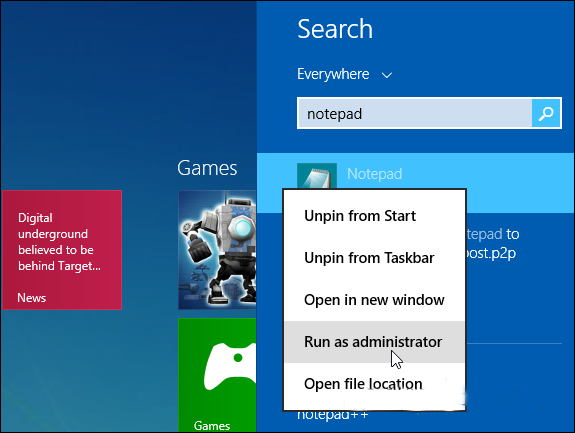
Then go to File > Open and browse to C:\Windows\System32\drivers\etc\

To see the files you’ll need to change the dropdown in the lower right corner to All Files.
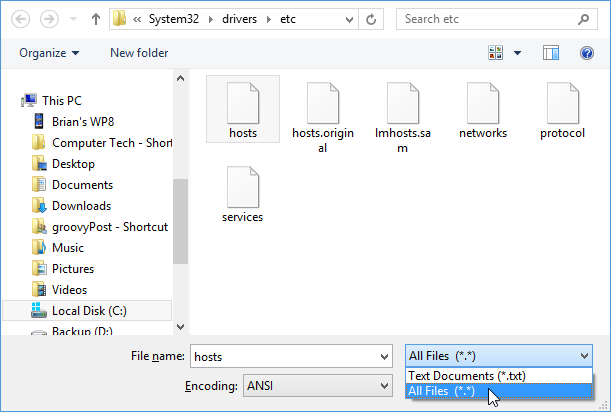
Once you have the HOSTS file open, scroll down to the bottom and add the following line at the end:
127.0.0.0 rad.msn.com
Then make sure to save the change.
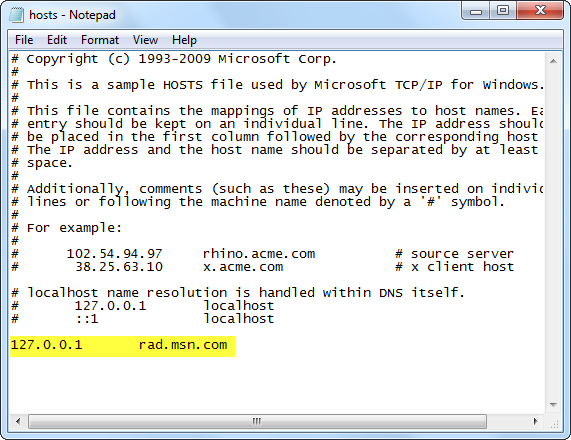
Restart Skype and the banner ad at the top is gone!
Flush DNS if Ad Comes Back
If the ad comes back after a few days you can easily get rid of it again by flushing your DNS. To do so, open the Command Prompt and type: ipconfig /flushdns and hit Enter.
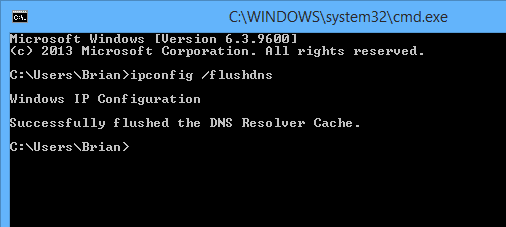
After that restart Skype and the ad should be gone again.
If you have anything to share about what happens when you get rid of the ad, how long it takes to come back or if you’ve figured out a way to permanently remove them.
10 Skype Tricks You Should Know
Written By Micah on Thursday, November 27, 2014 | 9:25 PM
To make your Skype journey more of a breeze, here are 10 interesting tips and tricks related to Skype. Who knows maybe you'll discover more of your own?

Since its creation in 2003, Skype has become a regular form of communication for many people.
Millions of people use Skype for holding conversations via text messaging, voice calls and video calls at no cost at all. You can even call mobile phones and landline numbers with just a small little fee.
Despite the recent advent of Google Hangouts, Skype is still popular among people for voice and video calling.
To make your Skype journey more of a breeze, here are 10 interesting tips and tricks related to Skype. Who knows maybe you'll discover more of your own?
- Transfer Your Skype Account Contacts: You can easily backup all of the contacts in one Skype account to be transferred into another. To do so, head to the main Skype window, click on "Contacts", click on "Advanced" and finally click on "Backup Contacts to File". It will generate a .vcf file which you can save on your computer system. Now sign into the second Skype account where you want to upload all these contacts into. Once you are signed in, click on "Contacts", click on "Advanced" and finally click on "Restore Contacts from File" which is exactly located below "Backup Contacts to File".
- Re-Edit Your Last Message: Suppose you have sent a message which contains a mistake and you want to edit that message and resend it again? You can do this simply by pressing the Up Arrow Key on your keyboard. The last message that you've sent earlier will appear. Just make the changes you want and resend the edited message.
- Make Calls Directly From Your Contact List: You can make calls to Skype contacts immediately by double clicking on them directly from Skype Contact List. To do so, head to the main Skype window, click on "Tools" followed by "Options". Then, go to "General Settings" and tick the check box "When I double-click on a contact start a call". However, this will restrict you from opening the IM Window directly by double clicking on a contact.
- Hide The Moving Pencil: When you are chatting on Skype with someone, you can see a moving pencil when the other person is typing or deleting something. Of course, this function also works both ways. If you rather not have them be privy to whether you are typing (or not), you can actually turn this option off. To hide the typing indicator, head to the main Skype window, click on "Tools", then "Options". Go to "IM & SMS" and click on "IM Settings" followed by "Show Advanced Options". Finally, tick the check box "Show when I am typing".
- Clear Your Chat History & Define The Time Frame For Storing It: You can clear all of your chat history on Skype and you can also define the time frame for storing the chat history. To clear your chat history, head to the main Skype window, click on "Tools" followed by "Options" then "IM & SMS". From there, proceed to "IM Settings" and then "Show Advanced Options" before finally clicking on the "Clear History" button. It is also in "Show Advanced Options" that you can select the time frame for storing your history from the drop down menu. Be careful, once you click on "Clear History" then you will lose all your chat messages that have already taken place in previous conversations with the contacts in your Skype account.
- Get Keyword Notifications: You can also choose to get notifications only when particular words are mentioned by the other person in a personal IM window. To set up the keyword notifications, start by opening up the personal IM window of a contact you want to set up keyword notification for. Click on the "Conversation" menu then "Notification Settings" and finally click on the radio button "Notify me only if these words are mentioned". Write down all the words that you want to be notified of in the text box provided. However, these settings will disable the notifications for all other messages apart from specified keywords, so there is a chance that you may miss out on an important message.
- 25+ Hidden Emoticons & Smileys: There's actually a collection of emoticons and smileys that are not visible in the emoticons set for Skype but you can still use them if you know their shortcodes. The keywords (left to right) are written for generating smileys (left to right). Each keyword is encapsulated within a () as well. If you want the full list, take a look HERE.
- Pause Animated Emoticons: If you don't like the animated emoticons and just want to pause them so any animated emoticon in your IM window will appear as a still emoticon without any movement. To pause the animated emoticons, head to the main Skype window, click on "Tools", click on "Options", click on "IM & SMS", select "IM appearance" and finally uncheck the "Show animated emoticons" checkbox.
- Enable Keyboard Shortcuts (Hotkeys): You can enable hotkeys to use keyboard shortcuts for frequently used functions. There are default keyboard shortcuts for a few functions, which you can change as per your preference. To enable keyboard shortcuts, head to the main Skype window, click on "Tools", click on "Options", click on "Advanced", select "Hotkeys" and finally click on the "Enable keyboard shortcuts" checkbox.
- Set Up Your Caller ID: If you make Skype calls to either landlines or mobile numbers then you might want others to see your original number whenever you call them rather than an unknown number that will most likely appear. To set up your Caller ID, go to the main window of Skype, click on the "Skype" menu and finally click on the "Account" button. It will open up a webpage in your default web browser where you'll get more information related to calls. Click on the "Caller ID" button and on next page select "Country/Region" and "Phone number". Now all you need to do is click on "Verify Number" and you're set.
- Hongkiat
How to Use Skype for Cheap International Calls
Written By Micah on Tuesday, November 25, 2014 | 5:58 PM

If you would like to make international calls on a regular basis, You must find a favorable cheap service that will save you on huge bills that are commonly associated with traditional calling services.
Nowadays, there are so many international calling service providers that offer different calling rates to their network subscribers. If you want to save more money on your international calls, try using cheap services that are reliable and affordable to you. Skype offers one of the most cheapest rates on international calls than any other international-calls service provider in the world.
About Skype Cheap International call rates.
-For many years, most people have taken advantage of the unlimited cheap Skype call rates.
-Depending on the country that you live, Skype credits are available from $10, 10 pounds and many other different currencies.
-Skype to Skype calls are free as long as both caller and respondent have an internet access.
-Once you buy a Skype credit , you can call your friends and relatives that are in other countries at very low rate per minute.
-During holiday seasons, Skype allows you to make unlimited internal calls once you top up your account with any Skype credit.
Making Skype to Skype calls
-Skype to Skype calls are free and most people use Skype services all over the world to communicate with their family members, friends and also call international companies.
-To make Skype to Skype cheap calls, you need the Skype ID of the recipient. Once you have the Skype ID you can choose to either make a video call or an audio call to the recipient.
-In order to have a good video call conversation with your recipient, Both of you are required to have a high speed internet, a working microphone & headphones and high mega pixel camera.
-You don’t need a Skype credit to make Skype to Skype calls and this makes Skype service to be the most cheapest and affordable international-calling service in the world today.
-Beside the free Skype international call rates, the Skype app is free to download and can be found at the Skype official website.
Making Skype calls to Designated phone numbers
-When making international-Calls with Skype, You need top up you account with a Skype credit of your choice.
-Skype credits can be purchased at the Skype official website and you can pay for the vouchers with your MasterCard , visa card or a PayPal account.
-Depending on the unlimited Skype offers and seasons of a year. Calling rates are less than 0.01$ per minute and they never fluctuate to higher prices than that.
-With Skype international services, you can save a lot of money that you could have used on your local service provider.
-To make an internal call with your Skype user account, just locate the dial pad tab and type the number you would like to call.
-If the recipient is available the call will definitely go through and you can talk as many hours or minutes that your Skype credit can allow.
How to Install and download Skype on your Mobile phone or computer
-If you want to install the Skype app to make cheap international calls, you need to have a high speed internet access to download the app. If you are using a smartphone, look for a fast Wi-Fi internet connection.
-On your device, search for the latest Skype version in the internet and download it to a specified folder on your device.
-Open the folder and install the Skype app.
-Follow the on-screen instructions and configure the app.
-When everything is done, open Skype and enjoy their services
Now, armed with this simple guide, you can install and start using skype to make cheap international calls and save yourself your hard earned money.
source:- http://thefusejoplin.com/2014/11/skype-cheap-international-calls/
Skype – Why It Is Still the Best App Out There?
Written By Micah on Monday, November 24, 2014 | 10:52 PM
Even before people started to understand how it was possible to make free video calls, Skype was already offering the service.
As a pioneer of free voice and video calling services, Skype has been around for the longest time. This is what has made it the most popular and most used free calling and texting app today. Skype is a service that supports group video calls with the ability to handle up to ten people for each video call.
With the stiff competition it receives from other free calling apps, what makes Skype the preferred choice for making video and audio calls?
Skype Is a Free Service
Skype is a VoIP service provider owned by Microsoft. It was created to replace the well-known MSN messenger service. The idea behind the creation of Skype was to give it the ability to allow users a platform where they can do more than simply send messages. Skype offers a platform where users can not only chat and send messages, but also make video and audio calls.
Skype is installed for free and can be used for free to reach other Skype users. Unlike most of its competitors, Skype is compatible with different platforms, and it also includes a desktop version. What’s more, it is possible for two people on different platforms to communicate seamlessly. Also, Skype comes loaded with helpful add-ons that make communication easier and even better.
Skype for Any Device
Skype is not only compatible with desktops and laptops, but also mobile devices. This is because the app is built to support different operating systems used on different mobile devices. This way, it is possible for Skype users to communicate with other Skype users on different devices. It is possible to have a personal one-on-one conversation with another user or hold a conference video or audio call. All you and your recipients need is a strong internet connection. Operating systems supported by Skype include Blackberry, Apple iOS, Android and Windows. Skype also offers Skype coins that can be used to make calls to landlines and non-Skype users. Compared to ordinary calling rates, making calls from Skype to non-Skype users is affordable.
Skype Is an App That Is Socially Integrated
The world today communicates mostly through social media. Therefore, it comes as no surprise that Skype comes socially integrated. Skype is constantly updated to support popular social media platforms. It is now possible to use Skype to communicate with your friends on Facebook. It is even possible to hold group chats with your friends on social media through the Skype app.
Instant Messaging With Skype
While Skype is mostly known and used for its seamless video calling abilities, this app can also be used to send instant messages to other Skype users. This makes it possible for users to chat with other users in real time. It is also possible to hold group chats that can handle up to 250 people. This number is higher than allowed by any other instant messaging app.
Skype – Top Alternatives Offering IM and Video Calls

Lately, using Skype has become strenuous and inconvenient. It is an understatement to call Skype services faulty.
Even after Microsoft took over, no major changes have been made and there are still problems with video calls, messaging, international use and synchronizing across devices.
Those experiencing these problems can try out alternatives that offer video calling and instant messaging services. While there is no assurance that they are better than Skype, they are worth a try.
Tox
There are many dangers lurking on the internet – chief among them is privacy breaches. Tox has taken this into consideration and as such provides full control over your chats by using strong encryption. Tox services are easy to use and free, but the most important is security thanks to the encryption. It offers general messenger services like file sharing, profile photos, video and phone calls and emoticons. This application only allows you to call those who have the app installed and is absolutely free of charge.
Slack
Slack is quite different from the rest of the apps as it offers an open platform. It makes use of third party applications for its functionality and it serves as a central communication platform. Sharing of files is possible via Dropbox or Google Drive but the chat function is inbuilt. You can share and view real-time web analytics via DataDog or GoSquared. Google Hangouts and Intercom are used for video and voice calls.
The application has a search option that enables you to type a key word and find out what is being talked about in that conversation. Slack is compatible with Android and iOS operating systems. Tagging friends is quite easy because of the autocomplete feature that completes your friends’ names.
Viber
Another good alternative to Skype is Viber. Initially, it was a Voice over IP service that enabled users to make direct calls to each other. However, you can now make both voice and video calls to users worldwide at no charge at all. You can chat with your friends who have the application for free and it has amazing stickers that make the conversations more lively and interesting to the users.
Making calls and chatting is seamless across various platforms because of Viber’s compatibility with different operating systems like iOS, Android, Windows 8, and Windows Phone among others. This and the fact that it is free, has contributed to its rising popularity.
WeChat
WeChat is like a mash up of many social applications like Instagram, Facebook and Twitter. This application that was developed in China has also risen to become a top alternative to IM applications like Skype. WeChat users are able to post photographs on their walls just like on Facebook and even directly share pictures and videos. The application is loaded with exciting applications like shake that allows users to find other users in their locality and start random chats.
source:- http://pressandupdate.com/skype-top-alternatives-offering-im-video-calls/


