
Latest Post
Showing posts with label Browsers. Show all posts
Showing posts with label Browsers. Show all posts
Stop Those Annoying Browser Prompt Asking For Your Location or to Send Notifications
Written By Micah on Tuesday, January 30, 2018 | 3:17 PM
If you've grown tired of answering those annoying browser prompts
every time a website wants to show you notifications or know your
location, you can turn the messages off forever with a few clicks in
every major browser. Scroll down below for your browser and where to
locate the appropriate settings in Chrome (desktop and Android), Firefox,
Opera, Edge, Internet Explorer and Safari (desktop and iOS).
Chrome
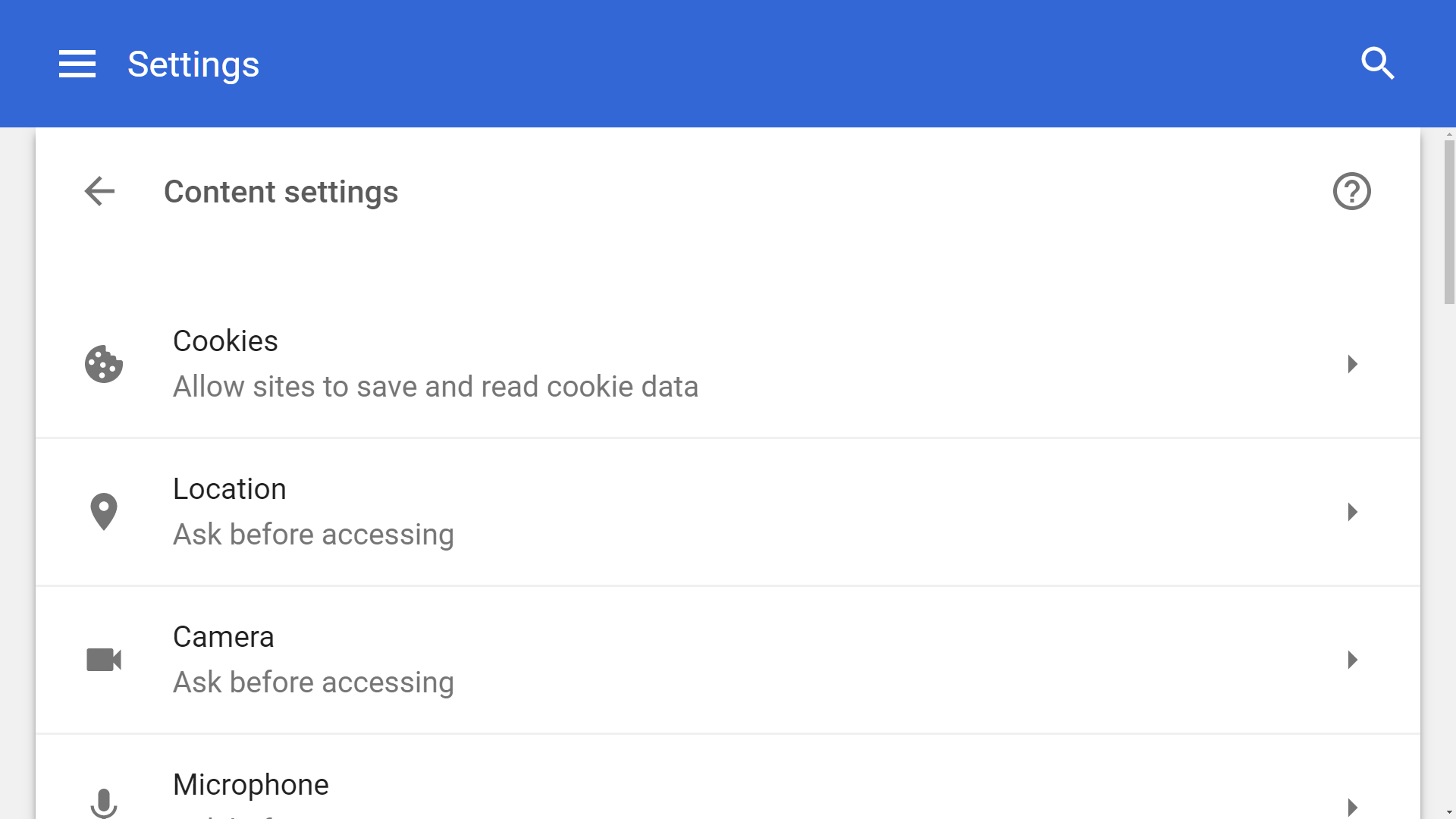
From the dropdown menu, select Settings > Advanced (scroll down) > Content settings.
From Chrome's content settings you can click into 'Location' and
'Notifications' separately to disable each. This will block the pop-ups
forever while also preventing websites from knowing your location and
sending you notifications.
Chrome (Android)
The exact same settings exist on the mobile version of Chrome found
in Android devices. Although we wouldn't outright disable location
settings on the browser like we'd do on the desktop (for obvious useful
reasons), if one of your favorite websites annoys you with these kind of
prompts, you can always disable them on a per-site basis.
From the Chrome menu button on the top right corner, select Settings.
Under Settings, scroll down to Advanced > Site settings. There you
will find discrete settings for both Location and Notifications, the
default is set to "Ask first," you can set those to "Block" which will
stop sites to prompt you for either.
Firefox
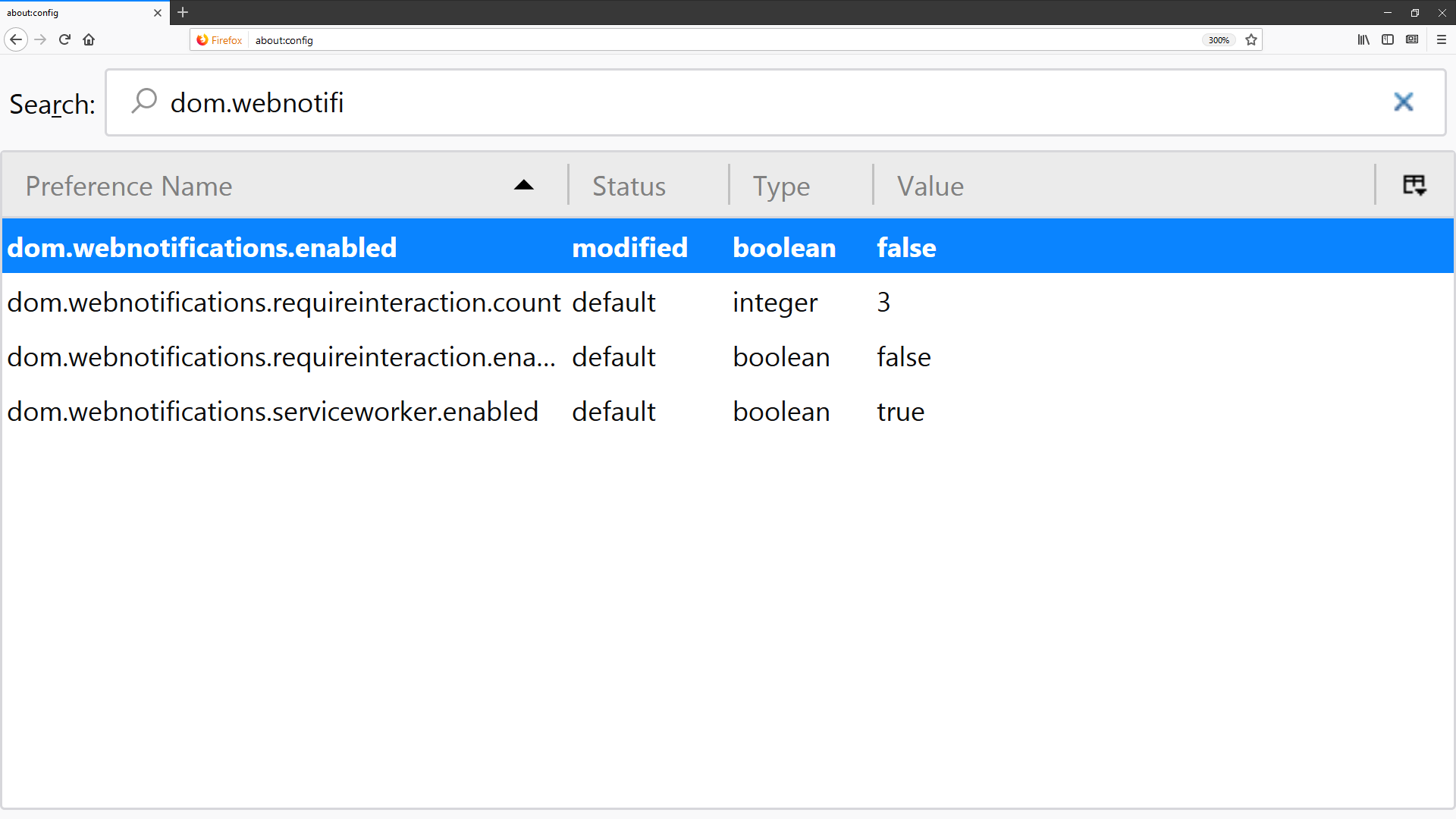
In the address bar type "about:config" and hit Enter. Accept the risk when prompted.
If you made it under the hood safely, use the search bar to find the following entries: dom.webnotifications.enabled and geo.enabled.
Double-clicking on each entry will set their values to false, which
is what you want to do if you're trying to disable the pop-ups.
Opera
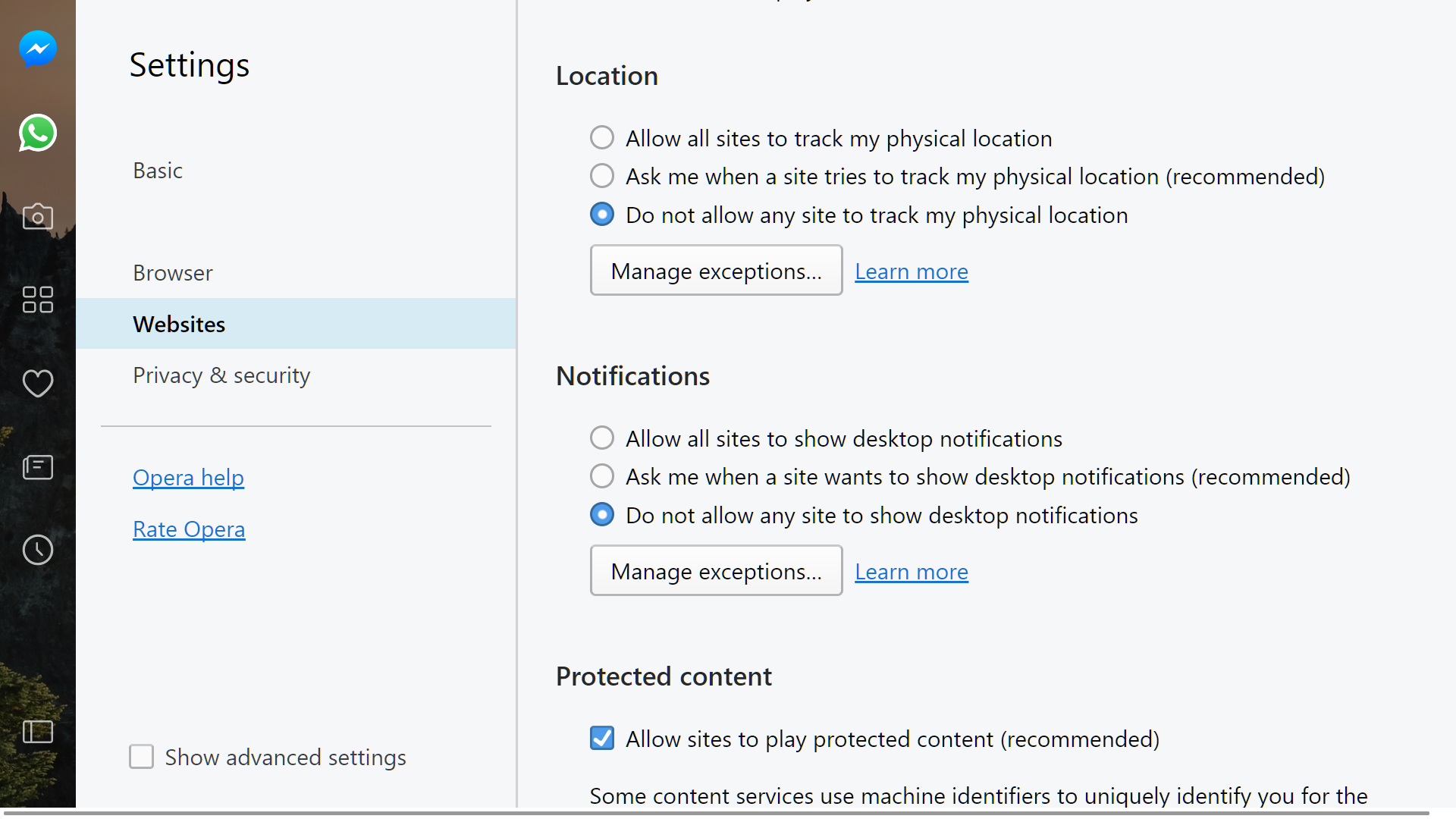
From the drop down menu, select Settings and then go to the Websites tab.
Location and notification prompts are both listed halfway through the
website section of Opera's menu settings -- set both of them to "do not
allow...".
Microsoft Edge
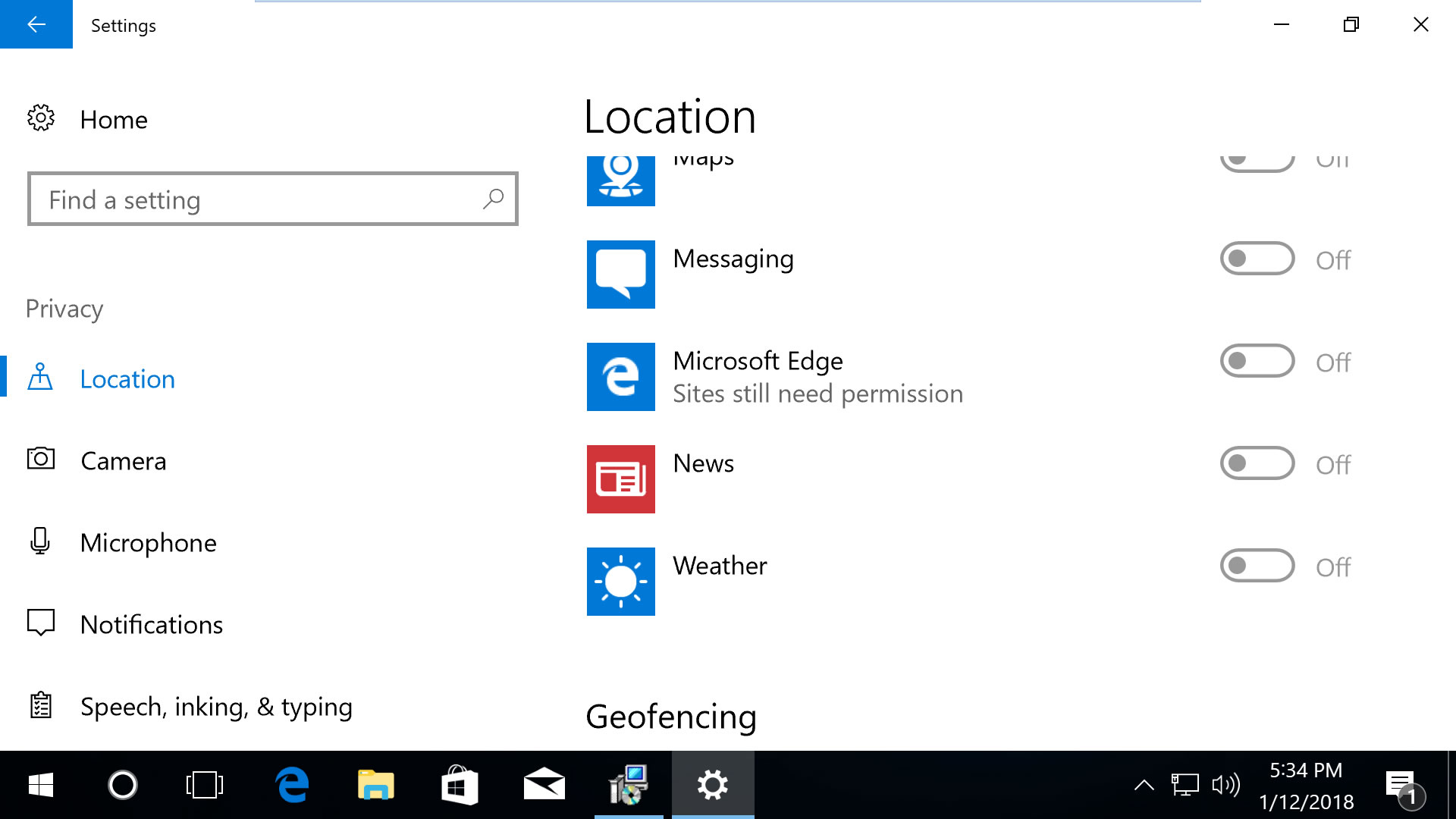
Scroll down in this section to 'Choose apps that can use your
location' and you can customize the settings for Microsoft Edge along
with other applications. Note that disabling 'Location service' on the
top of the same page will block all apps from using your location.
Open Edge's settings menu, go to View advanced settings > Notifications (manage).
Websites that can show notifications will be listed here so you can
customize which ones are able to send them. Likewise, from the privacy
settings in the Windows 10 menu mentioned above, the notifications
section will let you block them from all applications.
Internet Explorer
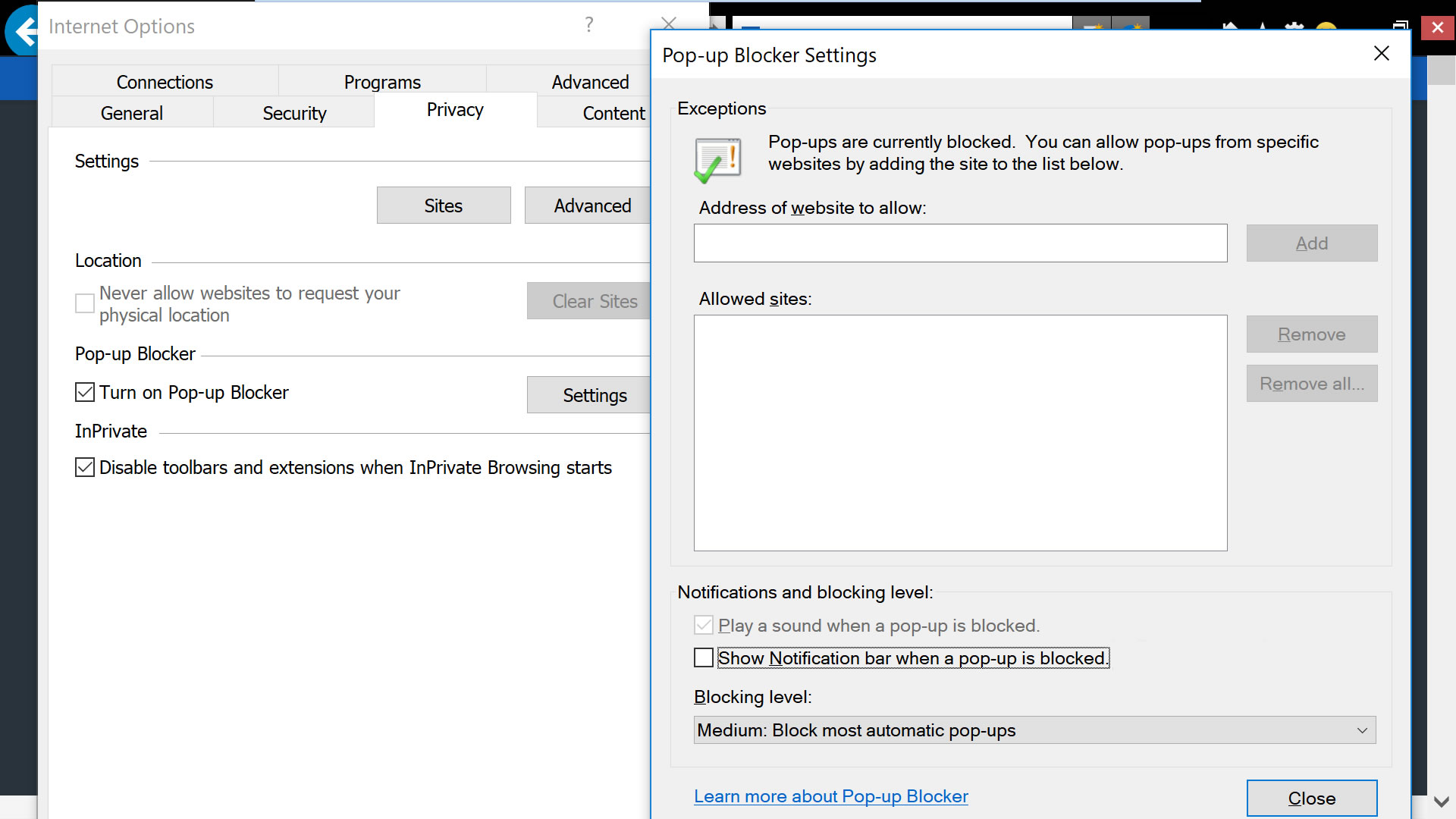
Open IE's dropdown menu, go to Internet options, select the Privacy tab.
In the privacy tab, uncheck 'never allow websites to request your
physical location' and then click into "Settings" for the option to
uncheck notifications from when a pop-up is blocked (this isn't the same
as the notifications blocked in other browsers but nonetheless
noteworthy).
Safari (macOS)

From Safari's drop down menu, select Preferences then go to the
Websites tab. On the left side menu you'll find Location and
Notifications.
On Location, you will find per website settings based on the
currently opened tabs. But to deny location to all websites, on the
bottom right corner select where it says "When visiting other websites:"
select Deny.
On the Notifications settings, uncheck the option where it says
"Allow websites to ask for permission to send push notifications."
Safari (iPhone /iOS)
On iOS devices, location settings are more strictly managed by the
operating system. Go to Settings > Privacy > Location Services.
Find the setting for Safari Websites and set it to "Never."
- techspot
Microsoft Edge Browser and 5 Reasons to Try it Now
Written By Micah on Sunday, May 10, 2015 | 10:24 AM

When Microsoft Windows 10 Build was announced, there were many amazing things that the company mentioned will be included in this update.
Among them are iOS and Android code running on a Windows Phone device, Visual Studio for Linux and Mac, as well as Holograms that are capable of attaching to physical robots. However, the most amazing of all is the new Microsoft Project Spartan browser.
In the latest Windows 10 Build, the company has done away with the Project Spartan name and now there is a new name for the browser, which is Microsoft Edge. This web browser comes in to replace the usually referred to as “boring” Internet Explorer and with it, there are lots of new features to exploit. There are also lots of innovations that include Cortana integration, page markup, among others. The good thing with Microsoft Edge web browser is that it’s universal across all devices running on the latest Windows 10.
Despite the fact that IE had received lots of updates as far as speed and performance are concerned, this web browser still remained one of the most reviled web browsers. You will still see the ‘e’ that was common with IE, but this is not the same Internet Explorer browser that you once knew. The browser runs on a new page-rendering engine known as Edge. This engine is far much better than the old Trident engine when it comes to speed as well as compatibility with the latest web platforms such as HTML 5.
Even though Microsoft Edge is set to replace IE, users of Windows 10 will still be able to access the services of IE 11.
So, why should everyone try out this latest Microsoft Edge web browser?
Browser extensions
Extensions are not very hard to come by in many Web browsers. However, the latest Edge browser comes with something different as users can access full Chrome and Firefox-style extensions. According to the latest word on the street, the same HTML and JavaScript standard code used on Firefox and Chrome will be used on developing browser extensions for Edge users. Users will also have a Reddit extension that lets them vote on stories as well as another extension on Pinterest for sharing pages. This update is expected to come at a later time after launching of Windows 10.
New tab page
It has come to be a common thing for users to hit the bar at the top of the browser when they want to open a new tab. This feature was available in IE and it still maintains its place in the latest Microsoft Edge browser. However, you will get more from this new tab feature, for instance, app suggestions, sports scores, weather as well as other video suggestions. While there is no present or visible address bar, you can still type your URL in the search bar and get the same results.
Cortana
The new voice assistant feature for Windows 10 is almost everywhereyou turn and with Edge, it is also present. Cortana will be visible on pages that have sensible directions via the browser toolbar and with this feature you will be able to access more information about the place. Right clicking on any selected text will prompt Cortana to find out more information about this specific selection.
Reading mode
The Reading Mode has been available on a number of top web browsers that include Safari.However, it is the first time that it is appearing in a Microsoft-based application. Using this feature, you can strip out all the irrelevant content on a webpage besides the main text and photos, for instance, sidebars and ads. In this way, you can easily read what you want without any distractions.
Page annotations
This is a new feature to the web browsing platform. Even the top browsers such as Chrome, Safari and Firefox have not incorporated the feature on their platforms, but it is coming with the new Microsoft Edge web browser.
Using the page annotations feature, it is possible to mark up web pages with the help of a drawing tool or rather a highlighter. The highlighted pages can then be shared with friends on social media apps or via an email as an image file.
Bottom line
The new Microsoft Edge browser is full of promise and has great potential. The speed is now faster, support is more standard than before and with the new extensions and additional features, this browser is truly headed in the right direction. The best part of it all is that the same experience will be evident across all devices using the Edge browser.
To try the Microsoft Edge browser now, join the Windows Insider Program first and install the latest Windows 10 Build.
- ordoh
Mozilla Set to Limit New Features of Firefox Web Browser to Secure Sites
Written By Micah on Thursday, May 7, 2015 | 11:42 PM

Mozilla still remains a top option when looking at the security aspect of web browsers.
When talking of web encryption, Firefox has been at the top of its game for years and it seems this is nowhere near the end.
According to a recent announcement by the company, it seems sites that enable HTTPS will be favoured more than those with plain HTTP. This is aimed towards ensuring that security of sites and users remain the top priority of the browser. What this means is that only sites that are encrypted will be able to use the latest features of Firefox web browser. This will stop any insecure website from accessing or exploiting the full potential of Mozilla’s web browser.
Firefox to avail new features to secure websites only
Even though this might sound easy on paper, it is not an easy thing to implement. A lot of coordination must take place before this happens. This includes getting an OK from the community regarding the date of the update and after this is agreed, the set of new features will only be availed to those websites that are secure or encrypted. This coordination will also involve the decision on which features are regarded as “new” in the latest version that only secure websites will be allowed to access.
Changeover to be slow and gradual
According to a senior Mozilla official, it is possible that users of Firefox can still access features like CSS and a bunch of other rendering features even when using insecure websites, but they may not be able to access certain new hardware capabilities. The process will be slow and gradual and in the end, Mozilla will phase out any access to features of the browser when using a non-secure website. This is definitely good news for some sites, but it will break down some sites as well.
While the above limitations might seem a little harsh for some sites, the company is also considering a string of “softer limitations” on functions when using any non-secure website. This is already happening as far as microphone and camera access is concerned. Another thing the company will be looking at is a way to limit the scope of non-secure cookies. All these are aimed at ensuring that the web developing community out there sticks to being secure at all times.
- ordoh
Why is Google Chrome an Amazing Web Browser Worth Downloading?
Written By Micah on Monday, April 27, 2015 | 11:35 PM

It was released in 2008 and since then it has substantially gained really high popularity. This internet browser supports Google’s reputation of industry dominance and innovation. This software borrows and improves methods from its well-established precedent services and it does it so great that it has become the standard to which all the other internet browsers aspire.
Google Chrome’s appeal lies mostly in its speed and simplicity. You have the ability to navigate and search the internet from the same box, pop-out or rearrange browser tabs and many other great things. The tabs can be isolated and they can function independently, which means that if one tab crashes, the rest of the tabs are not affected. Google Chrome has some really rich convenience features, like privacy browsing called Incognito mode (searches, history, downloads, cached content, passwords and cookies are all deleted on shutdown) or the ability of creating shortcuts to web apps you often use in order to launch your favorite apps quickly and easily.
Google Chrome is notably fast. Also, Google is trying hard to make Chrome particularly compatible with the web. Chrome was specially designed to efficiently and quickly display and load, as well as interact with the vast variety of apps on the web, featuring a PDF reader and a built-in Flash. The synchronization between desktop browser and your smartphone makes making bookmarks and saving favorites a seamless process. Chrome features the simplicity that other web browsers lack (the layout is well organized, intuitive and clean). Google Chrome’s features are notable for ease of use and efficiency.
Google Chrome is designed to protect and keep you safe and secure on the web thanks to a built-in phishing and malware protection, auto updates to provide you with the latest security fixes, etc. The Google Chrome browser will display a warning if you navigate to a website containing malware or is suspected of phishing. Google Chrome also boasts auto updates, and it engages the sandboxing method. This method isolates the happenings in one tab from influencing the others and helps block malware. Sandboxing method is a helpful method for blocking malware from installing on your computer and stealing your personal information or monitoring online activities.
Regarding the Google Chrome’s help center, it provides support in an array of categories; for instance, the resources that help new Google Chrome users to get started, as well as help advanced users to fully customize their browsing experience. Also, you can browse FAQs; check on familiar product issues and change display settings and language. There is also a help forum for posting issues, interacting with other users and providing feedback for others.
Google Chrome is assuredly one of the best, and most popular overall web browsers on the market. Its rich convenience features provide you with great browsing experience, its security functions enable safe browsing and clean layout provides you with intuitive navigation. Google Chrome’s standards compliance and speeds keep its performance almost unrivaled.
How to Always Start Any Browser in Private Browsing Mode
Written By Micah on Thursday, February 12, 2015 | 5:16 PM

Private browsing mode doesn’t offer complete privacy, but it does prevent your browser from saving your history, searches, cookies, and other private data between browsing sessions. You can have your browser always start in private-browsing mode if you prefer it.
Most people won’t want to use private-browsing mode permanently. You will have to log into the websites you use each time you open your browser, as your browser won’t save the cookies that keep your login state.
Google Chrome
To activate Google Chrome’s incognito mode by default, you will need to add a command-line option to its shortcut.
First, locate the shortcut you use to launch Google Chrome – either on your desktop, Start menu, or taskbar – and right-click it. Select Properties in the menu that appears.
If you are using using a taskbar shortcut on Windows 7 or 8, you will have to right-click the Google Chrome icon on your taskbar, right-click Google Chrome in the list, and select Properties.

Add -incognito (that’s a space character, a dash, and then the word incognito) to the end of the Target box. Click OK after adding this option.

Google Chrome will now start in incognito mode when you launch it via this shortcut. If you use other shortcuts to launch Google Chrome, you will need to modify them, too.
Mozilla Firefox
Firefox allows you to automatically enable private-browsing mode via its options window. Click the Firefox menu button and select Options to open it.

Click the Privacy icon and select “Never remember history.” Firefox will now use the same settings it uses in private-browsing mode, although it won’t display its normal private-browsing interface.

Internet Explorer
You will need to add a command-line option to your Internet Explorer shortcuts to activate InPrivate Browsing by default.
Locate the shortcut you use to launch Internet Explorer, right-click it, and select Properties. On Windows 7 or 8, right-click the Internet Explorer icon on your taskbar, right-click Internet Explorer, and select Properties.

Add -private to the end of the Target box (that’s a space, one dash, and then the word private). Click OK.

Internet Explorer will now start with InPrivate Browsing enabled when you launch it via this shortcut. If you use other shortcuts to launch Internet Explorer, you will need to modify each one.
Opera
Opera also has a command-line option to enable private-browsing mode.
As with the other browsers here, locate your Opera shortcut, right-click it, and select Properties. On the Windows 7 or 8 taskbar, right-click the Opera icon, right-click the name Opera, and then click Properties.

Add -newprivatetab to the end of the Target field (that’s a space, one dash, and thennewprivatetab). Click OK.

Opera will now open a private-browsing tab whenever you launch the shortcut. Note that Opera has per-tab private-browsing settings, so this tweak will only open a private-browsing tab when you launch Opera. You will have to open new “private tabs” instead of normal tabs while using Opera to continue using private-browsing mode.
Remember that your browser won’t be able to save login states, websites preferences, or any other type of data if you do this. This can be both a blessing and a curse.
If you want to undo any of these changes, you can modify the shortcuts against and remove the option you added. On Firefox, all you need to do is select the “Remember history” option.
5 Awesome Google Chrome Search Bar Tips and Tricks You May Not Know
Written By Micah on Sunday, December 7, 2014 | 11:30 PM

Did you know that the ever reliable Google Chrome browser has hidden secret powers? I mean, sure, you can type “5 x 5 =” on the search bar and it will display “25” on the search result. But aside from having a built-in calculator and currency converter, Chrome can do lots of other things (aside from taking you to the right website, of course).
The Big G posted their own Google Chrome search bar tips and tricks which you can type or say after clicking on the microphone button. We looked for the best ones and compiled them in a list along with some that we have using for some time already. If you know other cool Google Chrome search bar tricks, write them does down in the comments section below.
Find out the title of the song you just heard
If you heard a really nice song but can only make out a few lines of the lyrics, you can type the words that you recognized on the Google Chrome search bar and replace those that you can’t make out with an asterisk (*). Google will then complete the search for you and suggest the title of the song.
Set reminders, alarms and show calendar events
This is one of my favorites since it helps get things done. You can quickly set a timer using Google Chrome on your desktop by typing or uttering the words “set timer for (put number here) minutes.” If you signed in using your Google account, you can also type “show me my flights” or “where’s my package” if you have a flight confirmation or package order email in your Gmail inbox. Doing those will display the relevant information in the search results, no need to open a separate tab for Gmail.
Search within a range
Putting two periods “..” between two numbers in your search keywords will make Google look for results within that range. For example, typing “Android new 2011..2013” will only display articles posted from 2011 to 2013.” Similarly, typing “smartphones $200..$300” will only show models within the indicated price range.
Compare calorie counts
If you’re watching your weight, then you will find this trick very useful. Just type the word “compare” followed by the two foods that you’d like to find information about. For example, you can type “compare banana and apple” and Google will display the nutrition information about the two food items including calorie content and many other facts.
Define words quickly
Typing the url of a dictionary website (or even firing up an app) may take a short while. But Google Chrome can quickly define any word by typing “define:” on the search bar followed by the word you’re trying to find the meaning for.
Funny Firefox Tricks You Should Know
Here are Some Funny Firefox Tricks

To perform these tricks open your firefox browser and copy/paste the following in your address bar
- chrome://global/content/alerts/alert.xul
This will show you dancing firefox.Your firefox window will automatically popup anywhere at screen.
- · chrome://browser/content/browser.xul
This will open another firefox within in a new tab.So you will have firefox within firefox.
- · chrome://browser/content/preferences/preferences.xul
This will open firefox options dialog box in new tab.
- · chrome://browser/content/bookmarks/bookmarksPanel.xul
This will open your firefox bookmark manager in new tab.
- · chrome://browser/content/history/history-panel.xul
This will open your history in new tab.
- · chrome://mozapps/content/extensions/extensions.xul?type=extensions
This will open your extensions tab in your current window .
- · chrome://browser/content/preferences/cookies.xul
This will Open the “cookies window” inside a tab in the Firefox window.
- · chrome://browser/content/preferences/sanitize.xul
This will Open the “Clear Private Data” window inside the current tab.
- · chrome://browser/content/aboutDialog.xul
This will Open the “About Firefox” Dialog box inside the tab.
- · chrome://browser/content/credits.xhtml
This will Open a scrolling list of names. The one’s who we must thank for creating Firefox.
How to use browser as a calculator without Internet !!!
Written By Micah on Sunday, November 30, 2014 | 4:43 PM
THIS IS A SIMPLE TRICK TO PERFORM SIMPLE MATHEMATICAL CALCULATIONS IN A BROWSER WITHOUT ANY INTERNET.
If you need to calculate some figures, while surfing on the internet ,then no need to open calculator in window or to take any search engine . You can do simple calculation easily in the browser itself. It is done by simple java script, which is described below. You just need to write that script in address bar and press enter and the answer would display immediately in an dialog box.
javascript: alert(calculation part);
for example calculating 6+5 ,write javascript: alert(6+5); in address bar and press enter.
Answer will be displayed in dialog box as shown below. For calculating (6*5-2 ), write javascript: alert(6*5-2); in address bar and press enter.
For calculating (6*5-2 ), write javascript: alert(6*5-2); in address bar and press enter. You can use +, -, *, /, % and can perform calculation easily without open windows calculator. - techews
9 Shortcuts To Speed Up Internet Browsing
Written By Micah on Thursday, November 27, 2014 | 8:29 PM
These tips offer you shortcuts on how to maximize your speed while using the internet.

All the common browsers have a number of shortcuts but some are not as well-known as others.
Here are 9 helpful browser hot keys and shortcuts that you may not be aware of.
- Do a reverse search on an image: In the Chrome browser, you can do a Google search that shows the sources for an image. Hold down the "s" key and right-click the image. So far, this is unique to Chrome.
- Quickly restore a closed tab: Many PC users may already know this one but it is so useful that we had to include it for those who may not have heard of it. If you close a tab accidentally or change your mind, you can quickly reopen a tab with the keyboard combination Ctrl+Shift+T (hold down all three keys). It's a great timesaver and works in Chrome, Firefox, and Internet Explorer.
- Quick way to see the source code of a web page:Sometimes you want to see what HTML source code underlies a web page. A quick way to reveal the code is to use the shortcut Ctrl+U. This shortcut works in Chrome, Firefox, and Internet Explorer.
- Quick ways to open an incognito window: Sometimes you don't want your browser to store information from a particular site. All major browsers have an incognito mode to avoid keeping any browser history, search history, download history, web form history, cookies, or temporary internet files. In Chrome, the keyboard combination Ctrl+Shift+N will open a new incognito window. In Firefox and Internet Explorer, the combination is slightly different. For these browsers, use Ctrl+Shift+P.
- Easy way to open the home page: If you prefer a keyboard method for going straight to the home page, the combination Alt+Home works in Chrome, Firefox, and Internet Explorer.
- Quick way to open History: When you want to look at the browser history, a quick route is the keyboard shortcut Ctrl+H. This works in Chrome, Firefox, and Internet Explorer.
- Quickly delete the browser cache: It often occurs that you want to delete the files stored in the browser cache. A quick way is to use Ctrl+Shift+Del to open the dialog box which allows you to manage the cache. Details were given in this previous tip.
- Override cache and reload fresh page: If you view pages that change frequently, your browser may be loading a stale version because it is using the local cache. To skip the cached files and go right to the page's server, try holding down the Shift key and click the Refresh button. You can also use the keyboard combination Ctrl+F5. Another combination is Ctrl+Shift+R. These tricks work in Firefox but Chrome is sometimes recalcitrant and may require several repetitions.
- View the browser cache: If you want a quick way to see what files Chrome or Firefox is storing in its cache, just enter about:cache (no spaces) in the address bar. Chrome shows the contents of the cache directly. In Firefox, there is one more step. Click "List Cache Entries".
Source: TechSupportAlert
13 Alternative Web Browsers For Smartphones
In this post, we feature 13 useful web browsers for mobile phones that you may have not heard of before.

With the advent of smart phones and availability of high speed Internet, the craze for mobile phone applications with unique and useful features is boosted as well.
Considering this craze, one of the very important and core applications for accessing web pages and web sites is the web browser.
We all use a web browser to surf the net and check on what's going on around the world after all.
In this post, we feature 13 useful web browsers for mobile phones that you may have not heard of before. From enhanced privacy settings to offering multiple languages, chances are you'll find a mobile web browser that's just right for you.
For Android
- Exsoul Web Browser: Exsoul Web Browser provides a fast browsing experience. Some of its important features include search suggestions, translating content, searching content on several search engines, work with 21 languages and much more.
- Boat Browser: Boat browser is a powerful, customizable and smart mobile browser with some advanced features which provides you with an amazing experience. It has some premium (paid) features as well.
- Baidu Browser: Baidu Browser provides a unique browsing experience on mobile phones. It provides a user friendly interface, speed dials, personalized news in different languages and lots of other cool features. Its most notable feature though is the night mode that lends a more comfortable browsing experience at night.
- ONE Browser: ONE Browser is a fast and free to use mobile browser which utilizes picture compression and website optimization. Other cool functions include dual engine for better page display, smart website view and download optimization.
- Web Search Browser: Web Search Browser is a fast mobile phone browser with an easy-to-use interface and design. Some of its important features are tabbed browsing, home screen displaying most visited web sites and bookmarks. It allows you the opportunity to personalize the design according to your taste.
For iOS
- IQuest Browser: iQuest browser is a free to use browser designed for iOS. It makes browsing easy and allows one to search the web quicker. Other notable features include bookmarks syncing, private browsing, ad block, etc.
- Docler Browser: Docler is a free web browser for iOS devices. Some of its important features include desktop mode, full screen browser, video inline support and private browsing with no history and no cache.
- Mercury Web Browser: Mercury is a fast, elegant and a solid browser for iPhones. It has many features such as full screen browsing, ad block, multi-touch gestures, private browsing, file sharing, downloading, printing and much more.
- AllInOneBrowser: As the name suggests, AllInOneBrowser is actually a browser which contains all the necessary things that you'll need. Some of its important features are file manager for downloading files, multimedia player, PDF reader, full screen mode and private browsing among other things.
- Apollo Browser: Apollo Browser is a useful browser that comes with a built-in ad blocker, a built-in Facebook chat, a download manager so that you can download files at a high speed and much more.
- CXM Browser: CXM browser is pretty small at the size of 7.9MB but it supports multiple languages. It is an enterprise software edition which can be used to push bookmarks, set a homepage, blacklist URLs, and hide the address bar. This web browser is optimized for the iPhone 5.
For Various OS
- Dolphin Browser – Android, IPhone: Dolphin is a lightweight and secure mobile browser. With Dolphin, one can browse with a swipe and can search via voice. It has a big web app store and a wide range of add-ons.
- Sleipnir – Android, IPhone, Windows Phone: Sleipnir is a web browser which can work efficiently with various gestures. It allows you to switch between the tabs with great speed and ease. The Fav Tab feature allows you to go directly to the tab you want even if there are around a 100 tabs opened.
source:- http://pulse.ng/lifestyle/tech/tech-tips-13-alternative-web-browsers-for-smartphones-id3289020.html


