
Latest Post
Showing posts with label Google Tricks. Show all posts
Showing posts with label Google Tricks. Show all posts
10 Smart Google Search Tricks
Written By Micah on Thursday, November 27, 2014 | 8:14 PM
With these Google search "hacks" you can now have easier and faster ways to get results for your online searches.

Google is a more powerful tool than most people realize. You can get much more refined searches with Google's built-in tools, advanced operators, and third-party extensions.
You can also use it for some pretty cool stuff if you know the right tricks.
According to Lifehacker, here are 10 lesser known tricks and features that you will find quite useful:
- Use Google to Search Certain Sites: If you really like a web site but its search tool isn't very good, don't fret! Google almost always does a better job, and you can use it to search that site with a simple operator. For example, if you want to find an old Lifehacker article, just type site:lifehacker.com before your search terms (e.g. site:lifehacker.com hackintosh). The same goes for your favourite forums, blogs, and even web services. In fact, it's actually really good for finding free audiobooks, searching for free stuff without the spam, and more.
- Find Product Names, Recipes, and More with Reverse Image Search: Google's reverse image search is great if you're looking for the source of a photo, wallpaper, or more images like that. However, reverse image search is also great for searching out information — like finding out who makes the chair in this picture, or how do I make the meal in this photo. Just punch in an image like you normally would, but look at Google's regular results instead of the image results — you'll probably find a lot.
- Get "Wildcard" Suggestions Through Autocomplete: A lot of advanced search engines let you put a * in the middle of your terms to denote "anything." Google does too, but it doesn't always work the way you want. However, you can still get wildcard suggestions, of a sort, by typing in a full phrase in Google and then deleting the word you want to replace. For example, you can search for how to jailbreak an iphoneand remove one word to see all the suggestions for how to ____ an iphone.
- Find Free Downloads of Any Type: Ever needed an old
Android app but couldn't find the APK for what you were looking for? Or wanted an MP3 but couldn't find the right version? Google has a few search tools that, when used together, can unlock a plethora of downloads: inurl, intitle, and filetype. For example, to find free Android APKs, you'd search for -inurl:htm -inurl:html intitle:"index of" apk to see site indexes of stored APK files. You can use this to findAndroid apps , music files, free ebooks, comic books, and more. Check out the linked posts for more information. - Discover Alternatives to Popular Sites, Apps, and Products: You've probably searched for comparisons on Google before, like roku vs apple tv. But what if you don't know what you want to compare a product too, or you want to see what other competitors are out there? Just type in roku vs and see what Google's autocomplete adds. It'll most likely list the most popular competitors to the roku so you know what else to check out. You can also search for better than roku to see alternatives, too.
- Access Google Cache Directly from the Search Bar: We all know Google Cache can be a great tool, but there's no need to search for the page and then hunt for that "Cached" link: just type cache: before that site's URL (e.g. cache:http://lifehacker.com). If Google has the site in its cache, it'll pull it right up for you. If you want to simplify the process even more, this bookmarklet is handy to have around. It's great for seeing an old version of a page, accessing a site when it's down, or getting past something like the SOPA blackout.
- Bypass Paywalls, Blocked Sites, and More with a Google Proxy: You may already know that you can sometimes bypass paywalls, get around blocked sites, and download files by funneling a site through Google Translate or Google Mobilizer. That's a clever search trick in and of itself, but just like Google Cache, you can make the process a lot faster by keeping a few URLs on hand. Just add the URL you want to visit to the end of the Google URL (e.g. http://translate.google.com/translate?sl=ja&tl=en&u=http://example.com/ and you're good to go.
- Search for People on Google Images: Some people's names are also real-world objects—like "Rose" or "Paris." If you're looking for a person and not a flower, just search for rose and add to &imgtype=face at the end of your search URL, as shown above. Google will redo the search but return results that it recognizes as faces! This trick is now built into Google's UI. All you have to do is go to Search Tools > Type and you can choose from faces, photos, clip art, line drawings and even animation.
- Get More Precise Time-Based Search Results: You've probably seen the option in Google that lets you filter results by time, such as the past hour, day, or week. But if you want something more specific—like in the past 10 minutes—you can do so with a URL hack. Just add &tbs=qdr: to the end of the URL, along with the time you want to search (which can include h5 for 5 hours, n5 for 5 minutes, or s5 for 5 seconds (substituting any number you want). So, to search within th past 10 minutes, you'd add&tbs=qdr:n10to your URL. It's handy for getting the most up-to-the-minute news.
- Refine Your Search Terms with Advanced Operators: This isn't so much a "clever use" than it is a tool everyone should have in their pocket. For everything Google can do, so few of us actually use the tools at our disposal. You probably already know you can search multiple terms with AND or OR, but have you ever used AROUND? AROUND is a halfway point between regular search terms (like white teeth) and using quotes (like "white teeth"). AROUND(2), for example, ensures that the two words are close to each other, but not necessarily in a specific order. You can tweak the range with a higher or lower number in the parentheses. Similarly, if you want to exclude a word entirely, you can add a dash before it—like justin bieber -sucks if you want sites that only speak of Justin Bieber in a positive light. You can also use this to exclude other parameters—like excluding a site you don't like (troubleshooting mac -site:experts-exchange.com).
source:- http://pulse.ng/lifestyle/tech/tech-tips-10-smart-google-search-tricks-id3302676.html
20 Amazing Tricks You Didn’t Know Google Could Do
Written By Unknown on Saturday, November 22, 2014 | 1:31 AM
Google is by far the most used search engine and the most visited website in the world. Do you know that you can use Google not only for searching content on the web? In fact you can use Google for doing many things, including converting, calculating, comparing foods, getting important information and even playing. How can you do that? You just have to type some easy commands as a search and you are done. Follow the instructions of this post and have some fun with your favorite search engine!
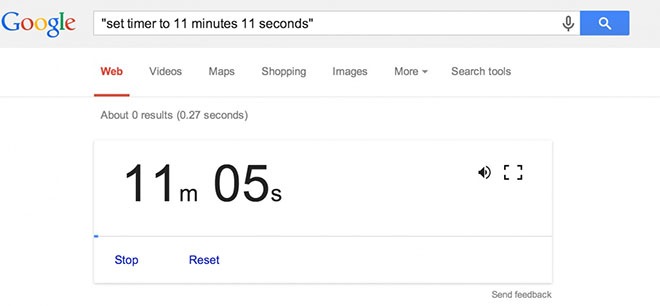
1. You can set Google as a timer
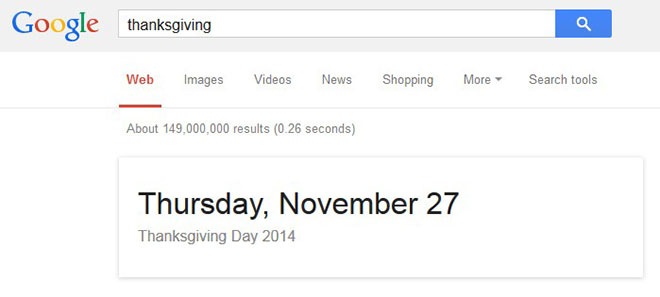
2. You can ask Google informations about festivities
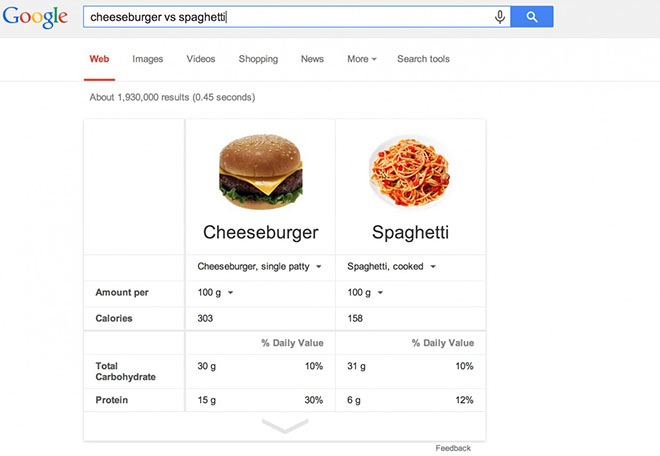
3. Compare foods’ nutritional facts
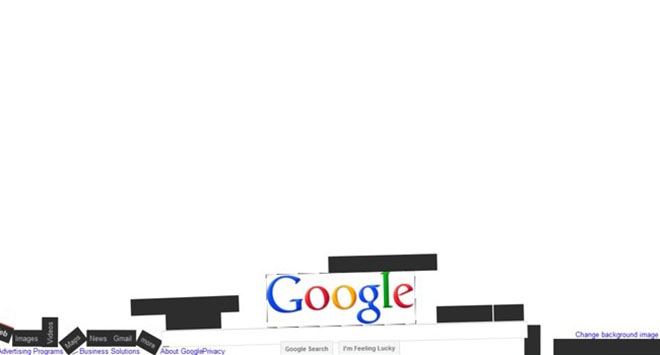
4. Type “Google gravity”, click “I’m feeling lucky” and see what happens
 5. You can use Google as a calculator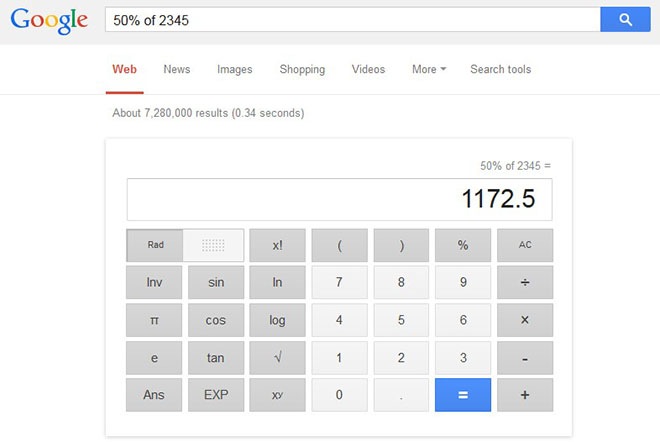
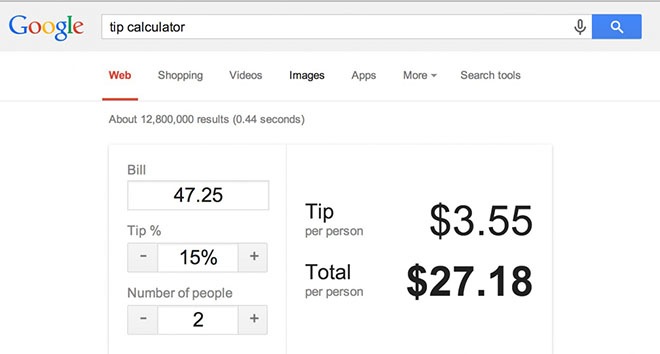
6. Even for calculating the right tip
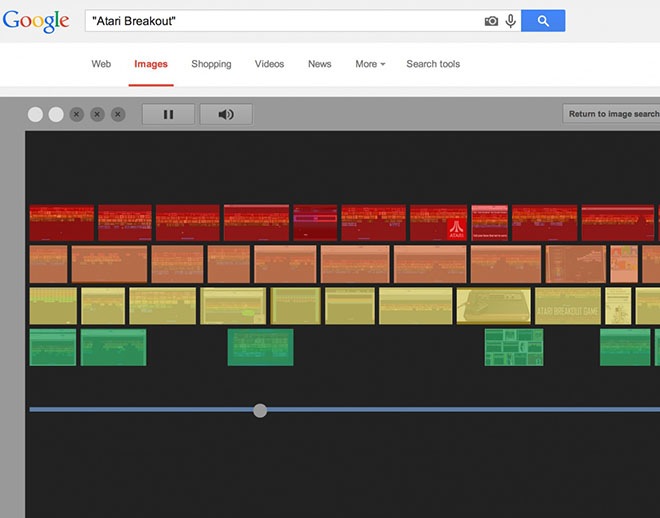
7. You can even play… Try to search for “Atari Breakout” into Google images and enjoy…
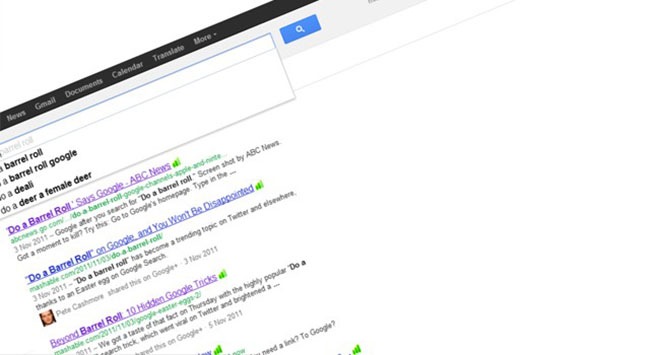
8. A little easter egg: type “do a barrel roll” and actually watch Google doing a barrel roll
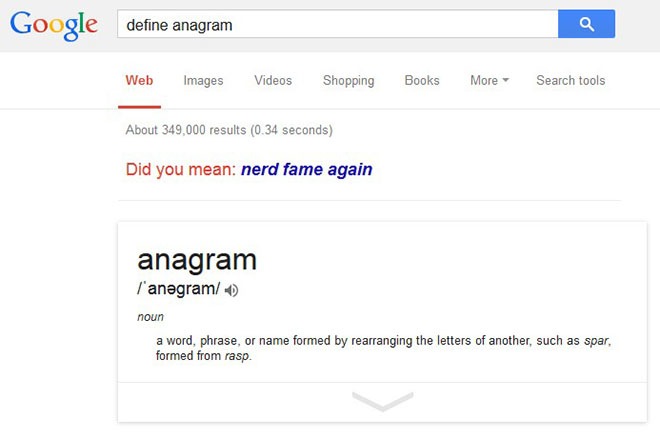
9. Every time you include the word “anagram” in a search, Google will do anagrams for you
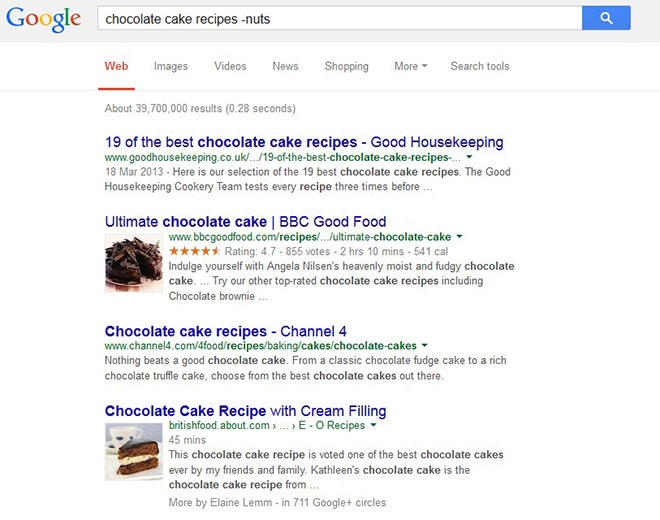
10. If you type a minus before a word, Google will exclude it from the search
11. Feeling lazy? Just click the microphone and do a vocal search

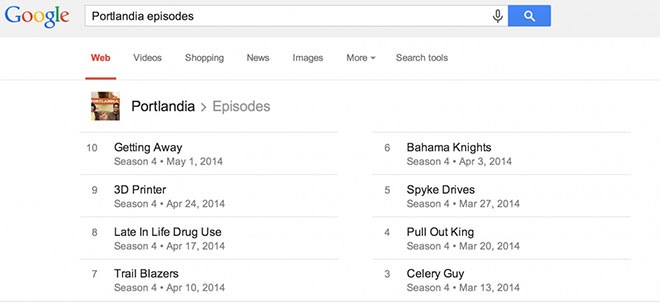
12. Use Google to stay up to date about your favorite tv series…
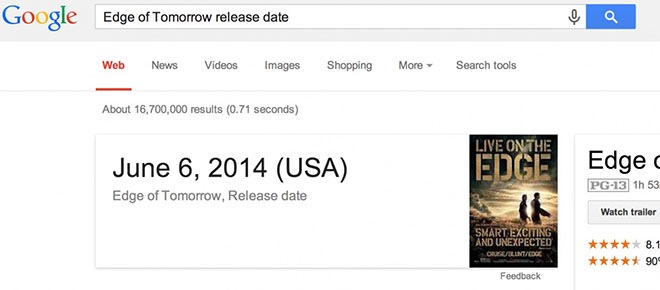
13. …and movies
14. Google can give you informations about flights

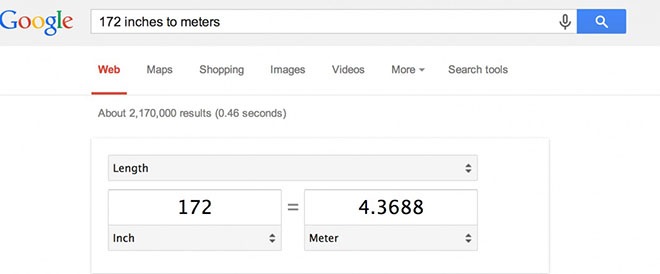
15. You can use Google to convert pretty much everything…
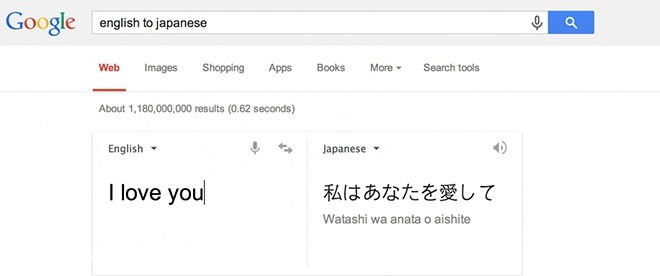
16. …and quickly translate
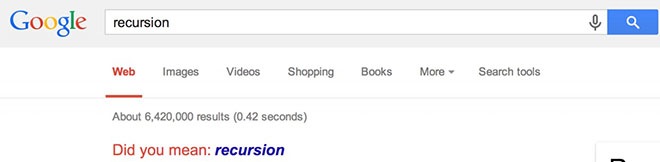
17. Try to search for recursion and get stuck into recursion
18. Another funny easter egg: type “tilt” and watch what happens

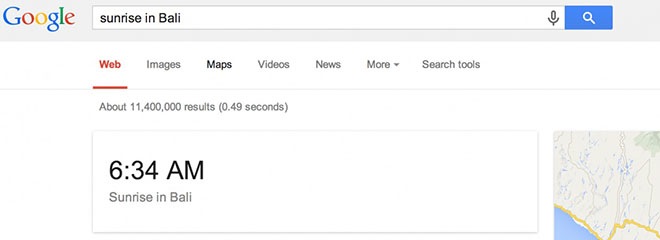
19. Stay informed about sunset and sunrise
20. Google can tell you the weather all over the world

21. Type Zerg rush and play defending your search results from Google’s o’s
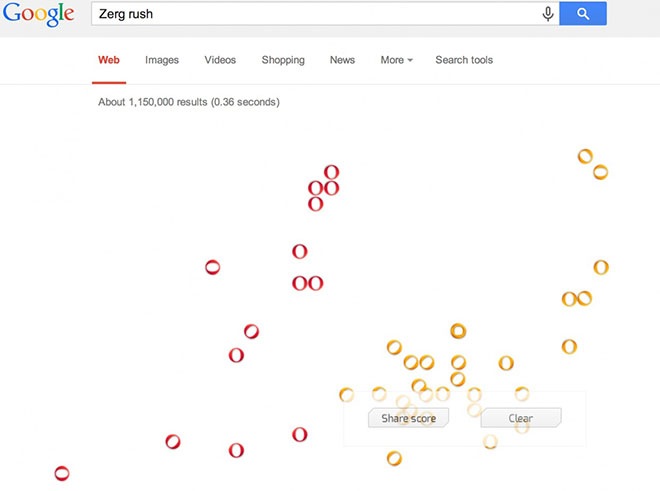 Did you know all of these tricks? Share this post with your friends by clicking the SHARE button below.
Courtesy:- http://justsomething.co/
Amazing tips and tricks for using Google
Written By Unknown on Friday, November 21, 2014 | 11:16 PM
Everyone uses Google yet few know just how powerful and convenient it can be. Check out these little-known tips and tricks to make your online search that much easier.
1.
Search for an exact word or phrase
Putting your search terms
in double quotation marks will only bring up searches for those words or
phrases. It’s a great option to search quotes or song lyrics. For example
“Imagine all the people”
2.
Exclude certain words from a search
Add a dash or minus sign
(-) before the words you want to exclude. For example, if you want to find a
recipe without nuts because of an allergy search “Chocolate cake recipe -nuts”.
3.
Search within a website
You can use Google to
search within a specific website by typing in your search term followed by
“site:” and then the URL of the website – a handy option if you remember
reading an article from a website but can’t find it. For example, if you found
a recipe on Over60 but can’t find it anymore search “recipe
site:oversixty.com.au” and all recipes on Over60 will come up.
4.
Do two Google searches at once
Add OR (must be capitalized)
between words. Without the OR, results would only show pages that match both
terms. For example, “World cup location 2018 OR 2022”.
5.
Fill the blank
If you’ve blanked on some
phrases, quotes or lyrics and it’s bothering you, never fear Google will work
it out for you. Fill in the blanks of any searches with asterisks (*). For
example “a * saved is a * earned” and Google will tell you it’s “a penny saved
is a penny earned”.
6.
Define a word
If you’re after a quick
definition type “define:” followed by the word. It will also show you synonyms
and origins of the word. For example “define: preposterous”.
7.
Search for a number range
Separate your number range
by two periods without any spaces (..) to return results within your specific
number range. You can do it with dates, prices or measurements. For example, if
you want to search for digital cameras within a price range you would search
“camera ₹ 50.. ₹150”. If you are looking for news about eclipses you would search
“eclipse 2008..2014”.
8.
Set a timer
If you’re watching a movie
on your laptop or tablet but need to remember to pick someone up, you can always
set a timer on Google. Type in “set timer for” and the Google timer will
appear. Enter times you want and Google will beep at you when the time runs
out.
9.
Do maths
Type your equations in
Google and it will do the work for you. For example “33% of 2000”.
10.
Similar words
Google can search for words
and all of its synonyms by adding a ~ before the word. For example, if you type
“~mobile phone”, you will also get results that include “cellular” and
“wireless” and so on.
Via:- http://www.oversixty.com.au/
Do Multiple Google Search in Single Page at a Time

Get the power of 4 Google’s at a time with googlegooglegooglegoogle.com.
This website
claims to increase your productivity by letting you search in four different
Googles at same time in a single page.
What does this website really do is open four different frames
with Google Search in them, and for each one, you can get results for different
things. You can close few frames to get better view of your search results. And
even goog4 lets you change Google to some other search engine like wiki, blackle or bing.This
is particularly useful for people who have large screen monitors and want to
search related terms at same time. Check 4xGoogle at http://googlegooglegooglegoogle.com/.
http://www.gtricks.com/google-tricks/multiple-google-search-single-page-time/
Google Magic Trick to Surprise Your Friends

This
is a simple Magic Trick with
Google that can be easily
performed to surprise you friends and win laurels. No prior experience or
preparation required to carry out this magic trick.
The
trick is to disappear the two O’s from the Google logo.
For this, first navigate to this page, by Dark
Arts Media. Do not tell your friends that you are going to perform a magic else
they would be extra careful and will notice the URL address.
Be
casual, open this page, and then
do some gestures by one hand covering theGoogle logo,
uttering aabra-ka-dabra and click anywhere on page by
another hand. Remove your hand from the logo and your friend will be surprised
to see that the two middle O’s of Google are missing.
Repeat the same steps to bring back the missing alphabets and enjoy this funny
effect with your friend.
The
catch is at the special page, which animates by itself when you click on
it. For the first time when you click, the alphabets will disappear. When you
click again, the alphabets will reappear after 5 seconds.
Moreover, if you click third time, you would be forwarded to original Google home page.
Source:-http://www.gtricks.com/google-tricks/magic-trick-surprise-friends/
Top 10 unknown Google tricks
Below is a list of our top ten Google tricks many people who
use Google don't know about.
Definitions
Pull up
the definition of the word by typing define followed by the word you want to
define. For example, typing: define bravura would display the
definition of that word.
Local search
Visit Google Local enter
the area you want to search and the keyword of the place you want to find. For
example, typing: restaurant at the above link would display
local restaurants.
Phone number lookup
Enter a
full phone number with area code to display the name and address associated
with that phone number.
Find weather and movies
Type
"weather" or "movies" followed by a zip code or city and
state to display current weather conditions or movie theaters in your area. For
example, typing weather 110001 gives you the current
weather conditions for New Delhi City, India. Typing movies
110001 gives you a link for show times for movies in that area.
Track airline flight and packages
Enter the
airline and flight number to display the status of an airline flight and it's
arrival time. For example, type: Indigo 145 to display this
flight information if available.
Translate
Translate
text, a full web page, or search by using the Google
Language Tools.
Pages linked to you
See what
other web pages are linking to your website or blog by typing link: followed by
your URL. For example, typing link:http://www.computerhope.com displays
all pages linking to Computer Hope.
Find PDF results only
Add
fileType: to your search to display results that only match a certain file
type. For example, if you wanted to display PDF results only type: "dell
xps" fileType:pdf -- this is a great way to find online manuals.
Calculator
Use the
Google Search engine as a calculator by typing a mathematic problem in the
search. For example,typing: 100
+ 200 would display results as 300.
Stocks
Quickly
get to a stock quote price, chart, and related links by typing the stock symbol
in Google. For example, typing: msft displays the stock
information for Microsoft.
Via:- http://www.computerhope.com/


