
Latest Post
Showing posts with label Microsoft. Show all posts
Showing posts with label Microsoft. Show all posts
Stop Those Annoying Browser Prompt Asking For Your Location or to Send Notifications
Written By Micah on Tuesday, January 30, 2018 | 3:17 PM
If you've grown tired of answering those annoying browser prompts
every time a website wants to show you notifications or know your
location, you can turn the messages off forever with a few clicks in
every major browser. Scroll down below for your browser and where to
locate the appropriate settings in Chrome (desktop and Android), Firefox,
Opera, Edge, Internet Explorer and Safari (desktop and iOS).
Chrome
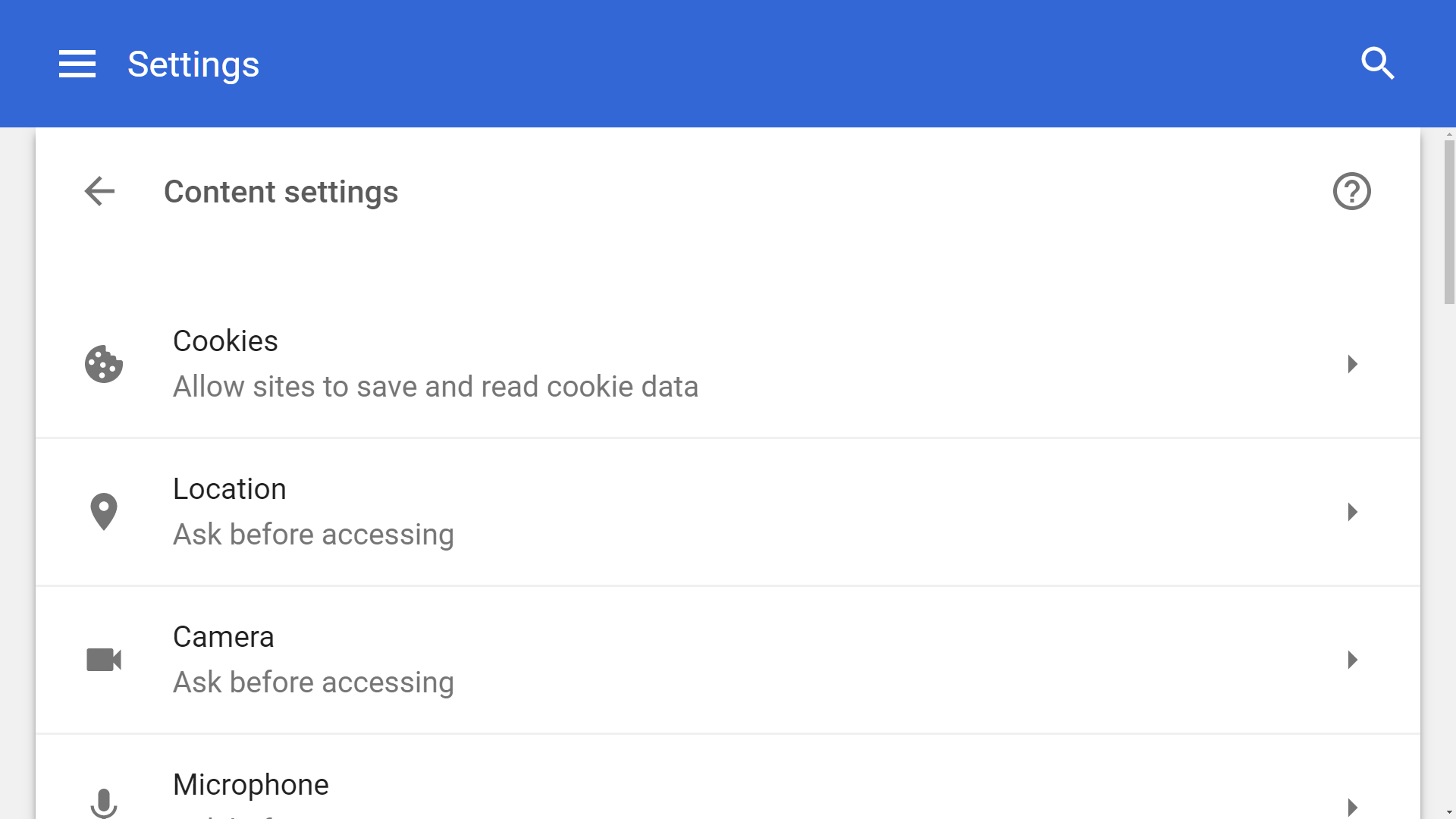
From the dropdown menu, select Settings > Advanced (scroll down) > Content settings.
From Chrome's content settings you can click into 'Location' and
'Notifications' separately to disable each. This will block the pop-ups
forever while also preventing websites from knowing your location and
sending you notifications.
Chrome (Android)
The exact same settings exist on the mobile version of Chrome found
in Android devices. Although we wouldn't outright disable location
settings on the browser like we'd do on the desktop (for obvious useful
reasons), if one of your favorite websites annoys you with these kind of
prompts, you can always disable them on a per-site basis.
From the Chrome menu button on the top right corner, select Settings.
Under Settings, scroll down to Advanced > Site settings. There you
will find discrete settings for both Location and Notifications, the
default is set to "Ask first," you can set those to "Block" which will
stop sites to prompt you for either.
Firefox
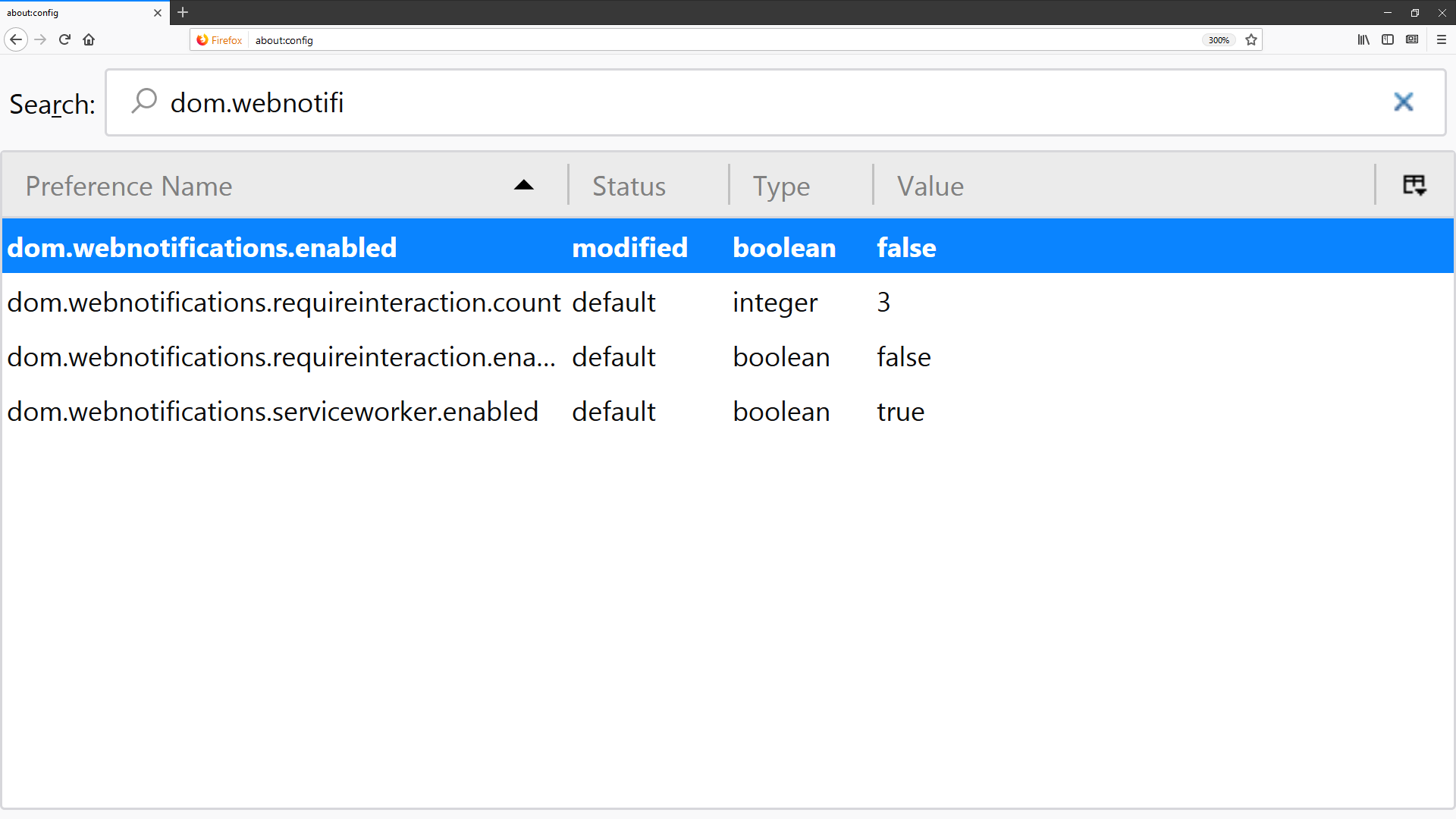
In the address bar type "about:config" and hit Enter. Accept the risk when prompted.
If you made it under the hood safely, use the search bar to find the following entries: dom.webnotifications.enabled and geo.enabled.
Double-clicking on each entry will set their values to false, which
is what you want to do if you're trying to disable the pop-ups.
Opera
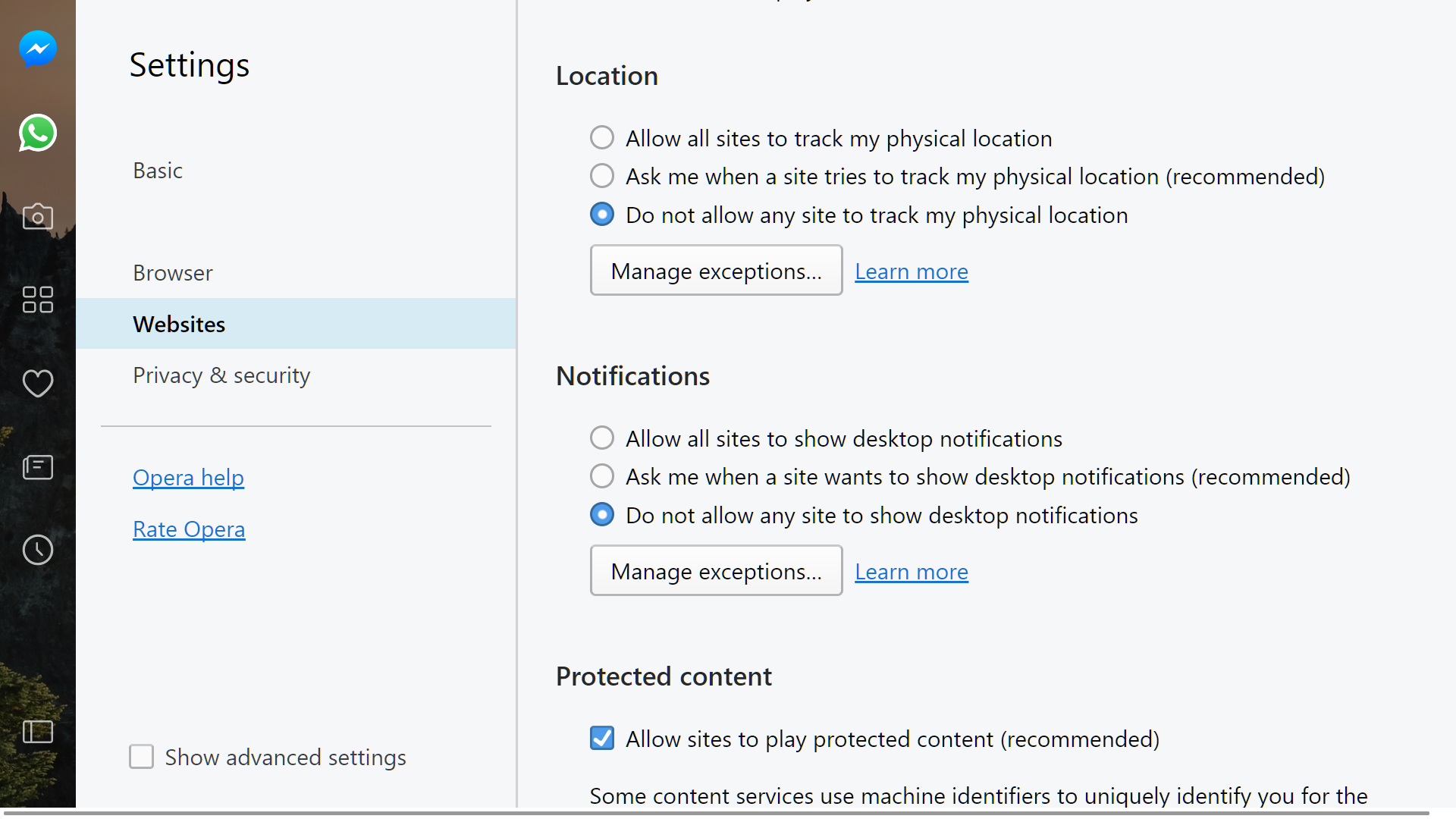
From the drop down menu, select Settings and then go to the Websites tab.
Location and notification prompts are both listed halfway through the
website section of Opera's menu settings -- set both of them to "do not
allow...".
Microsoft Edge
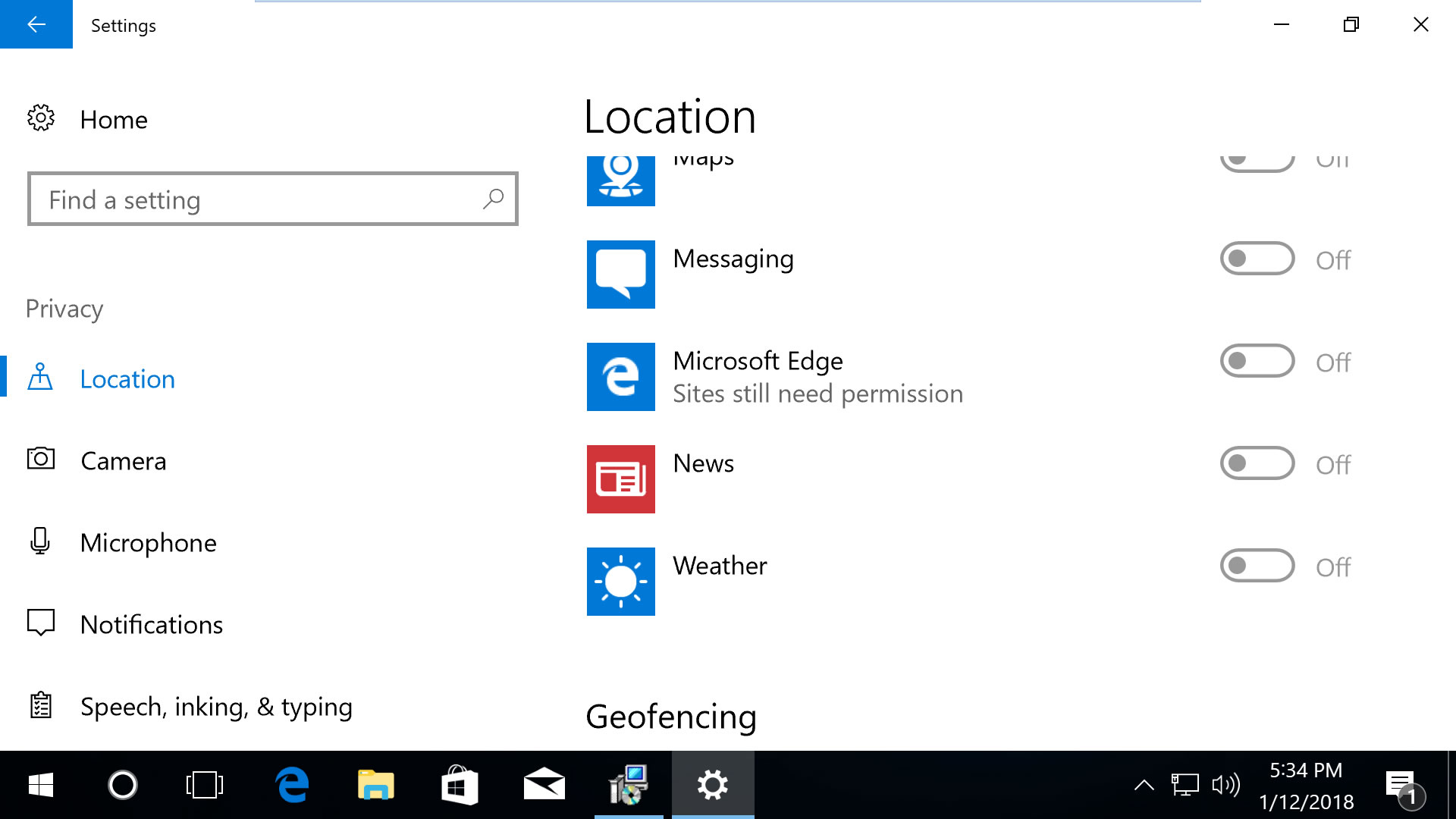
Scroll down in this section to 'Choose apps that can use your
location' and you can customize the settings for Microsoft Edge along
with other applications. Note that disabling 'Location service' on the
top of the same page will block all apps from using your location.
Open Edge's settings menu, go to View advanced settings > Notifications (manage).
Websites that can show notifications will be listed here so you can
customize which ones are able to send them. Likewise, from the privacy
settings in the Windows 10 menu mentioned above, the notifications
section will let you block them from all applications.
Internet Explorer
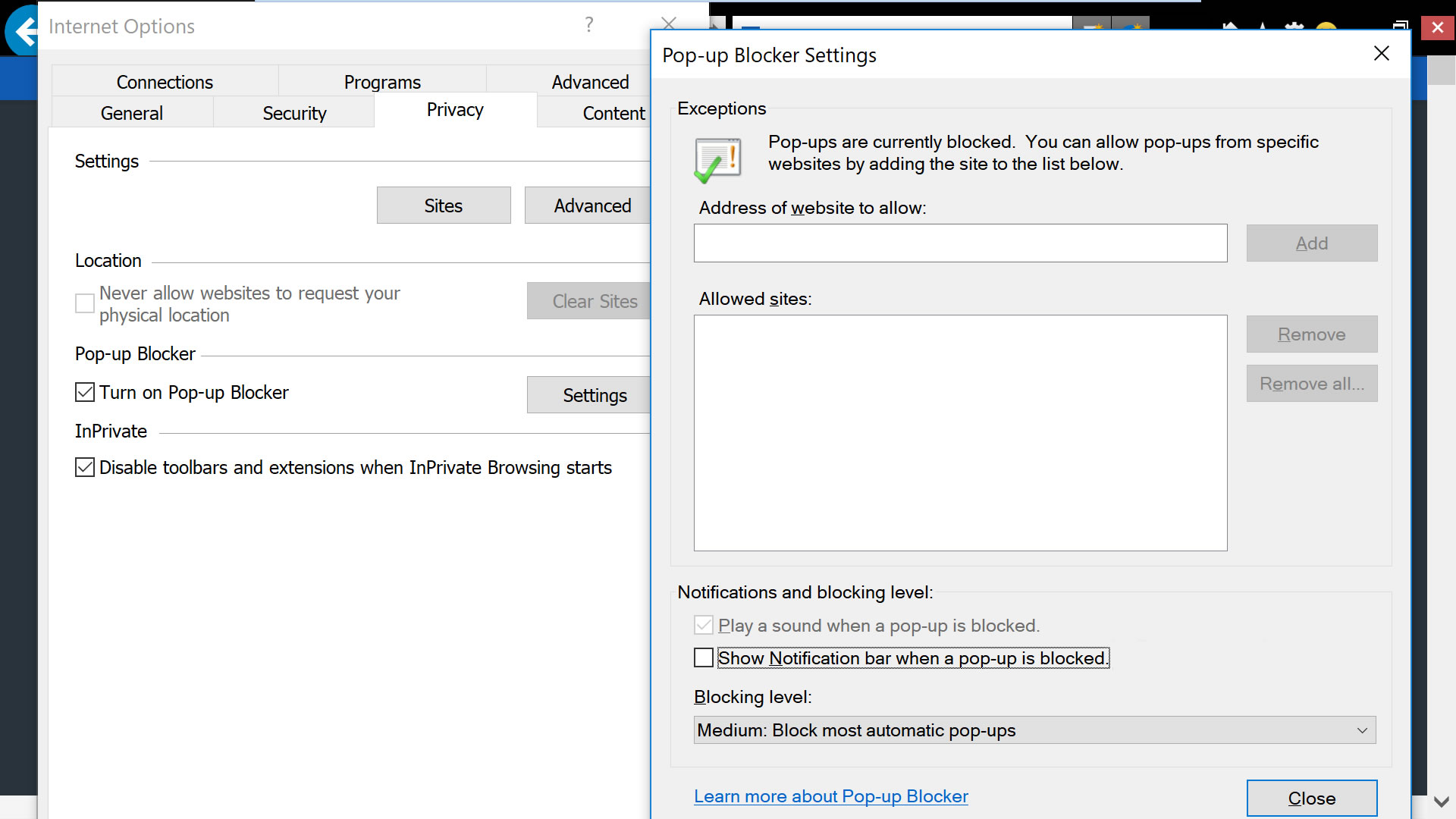
Open IE's dropdown menu, go to Internet options, select the Privacy tab.
In the privacy tab, uncheck 'never allow websites to request your
physical location' and then click into "Settings" for the option to
uncheck notifications from when a pop-up is blocked (this isn't the same
as the notifications blocked in other browsers but nonetheless
noteworthy).
Safari (macOS)

From Safari's drop down menu, select Preferences then go to the
Websites tab. On the left side menu you'll find Location and
Notifications.
On Location, you will find per website settings based on the
currently opened tabs. But to deny location to all websites, on the
bottom right corner select where it says "When visiting other websites:"
select Deny.
On the Notifications settings, uncheck the option where it says
"Allow websites to ask for permission to send push notifications."
Safari (iPhone /iOS)
On iOS devices, location settings are more strictly managed by the
operating system. Go to Settings > Privacy > Location Services.
Find the setting for Safari Websites and set it to "Never."
- techspot
Microsoft Edge Browser and 5 Reasons to Try it Now
Written By Micah on Sunday, May 10, 2015 | 10:24 AM

When Microsoft Windows 10 Build was announced, there were many amazing things that the company mentioned will be included in this update.
Among them are iOS and Android code running on a Windows Phone device, Visual Studio for Linux and Mac, as well as Holograms that are capable of attaching to physical robots. However, the most amazing of all is the new Microsoft Project Spartan browser.
In the latest Windows 10 Build, the company has done away with the Project Spartan name and now there is a new name for the browser, which is Microsoft Edge. This web browser comes in to replace the usually referred to as “boring” Internet Explorer and with it, there are lots of new features to exploit. There are also lots of innovations that include Cortana integration, page markup, among others. The good thing with Microsoft Edge web browser is that it’s universal across all devices running on the latest Windows 10.
Despite the fact that IE had received lots of updates as far as speed and performance are concerned, this web browser still remained one of the most reviled web browsers. You will still see the ‘e’ that was common with IE, but this is not the same Internet Explorer browser that you once knew. The browser runs on a new page-rendering engine known as Edge. This engine is far much better than the old Trident engine when it comes to speed as well as compatibility with the latest web platforms such as HTML 5.
Even though Microsoft Edge is set to replace IE, users of Windows 10 will still be able to access the services of IE 11.
So, why should everyone try out this latest Microsoft Edge web browser?
Browser extensions
Extensions are not very hard to come by in many Web browsers. However, the latest Edge browser comes with something different as users can access full Chrome and Firefox-style extensions. According to the latest word on the street, the same HTML and JavaScript standard code used on Firefox and Chrome will be used on developing browser extensions for Edge users. Users will also have a Reddit extension that lets them vote on stories as well as another extension on Pinterest for sharing pages. This update is expected to come at a later time after launching of Windows 10.
New tab page
It has come to be a common thing for users to hit the bar at the top of the browser when they want to open a new tab. This feature was available in IE and it still maintains its place in the latest Microsoft Edge browser. However, you will get more from this new tab feature, for instance, app suggestions, sports scores, weather as well as other video suggestions. While there is no present or visible address bar, you can still type your URL in the search bar and get the same results.
Cortana
The new voice assistant feature for Windows 10 is almost everywhereyou turn and with Edge, it is also present. Cortana will be visible on pages that have sensible directions via the browser toolbar and with this feature you will be able to access more information about the place. Right clicking on any selected text will prompt Cortana to find out more information about this specific selection.
Reading mode
The Reading Mode has been available on a number of top web browsers that include Safari.However, it is the first time that it is appearing in a Microsoft-based application. Using this feature, you can strip out all the irrelevant content on a webpage besides the main text and photos, for instance, sidebars and ads. In this way, you can easily read what you want without any distractions.
Page annotations
This is a new feature to the web browsing platform. Even the top browsers such as Chrome, Safari and Firefox have not incorporated the feature on their platforms, but it is coming with the new Microsoft Edge web browser.
Using the page annotations feature, it is possible to mark up web pages with the help of a drawing tool or rather a highlighter. The highlighted pages can then be shared with friends on social media apps or via an email as an image file.
Bottom line
The new Microsoft Edge browser is full of promise and has great potential. The speed is now faster, support is more standard than before and with the new extensions and additional features, this browser is truly headed in the right direction. The best part of it all is that the same experience will be evident across all devices using the Edge browser.
To try the Microsoft Edge browser now, join the Windows Insider Program first and install the latest Windows 10 Build.
- ordoh
Build 2015: Goodbye Internet Explorer; Microsoft Edge will be new browser on all Windows 10 devices
Written By Micah on Thursday, April 30, 2015 | 11:32 PM

Microsoft unveiled the new name of its latest browser that will be seen from Windows 10 OS onwards. So far known as Project Spartan, the new browser will be called Microsoft Edge. The idea behind naming it as Edge is the fact that the new rendering engine that Microsoft is using for the Windows 10 browser is called Edge HTML.
Microsoft made this announcement at the Build developers conference on Wednesday. It announced the details about Microsoft Edge, highlighting the fact that it is meant for consuming and creating content. The browser will have a new layout for new tabs which seem to have a flat design approach, favourites folder built into the browser, thumbnails of frequently visited websites, web apps and personalised information from Cortana.
As we had seen on the Windows 10 event in January most of the features such as annotating, distraction free reading, Cortana support will be provided as default. “With the new browser you can write directly on Web pages (and share them), read online articles free from distraction or use the offline reading feature for greater convenience,” says the Microsoft blog. Hovering the mouse pointer over the open tabs will give you a small thumbnail view of the webpage.
Apart from this, Microsoft has also added support for Chrome and Firefox extensions which can be optimised for Edge by making ‘a few changes’ says Microsoft.
If you want to try the browser, you will need to be running the latest build of Windows 10 Technical Preview (ie. Build 10105).
Android App Support to Windows 10 Update by Microsoft

Rumor has it that Microsoft will soon spread the word that all Windows 10 gadgets (PC, tablets and of course smartphones) will run Android applications. This statement will be corroborated at the Build developer conference, which will take place in San Francisco.
However, Thurrott is skeptical about Microsoft’s strategy and states the following: “But letting Android apps run on Windows is a completely different matter. Indeed, it is the literal opposite of opening up universal apps to Android. And I question the logic of this strategy” were his words.
But if these rumors prove to be true, Microsoft will be able to actually fix the platform’s small app environment, something that really makes Windows phone users a bit anxious. This means more access for the users to all sorts of applications that they could not access before. But users will just have to wait and see how exactly Microsoft will manage the Android applications. The rest of the devices that operate on Windows 10 will also profit from the Android apps.
Thurrott declares that this new Android compatibility is a low blow for developers. This means that all the specialists, who have worked hard on Microsoft’s platforms, should move onwards, since there is nothing left for them to do. He strongly believes that by including Android app support for Windows 10 will make Microsoft’s platform zip. He also claims that this is a complete collapse and Windows will loose its value even more.
At the Build convention, Microsoft will also unveil some technical fine points of its platform. It is also expected to launch a few code samples for developers to test. And let’s not forget the fact that Microsoft announced Universal Windows Apps, a strategy that was believed to bring a more familiar program cycle to computers, tables and phones at the previous Build convention back in 2014.
- PAU
5 Awesome Microsoft Word Tips and Tricks
Written By Micah on Thursday, December 25, 2014 | 6:22 PM

MS word is World’s mostly and widely used text editor with awesome features and functionality. Across many years, be it the 2001 version,2007 version and now the 2010 version MS word is the most used, most preferred and most helpful text editors in the world.
In this article, I am going to give you all 5 awesome and amazing Microsoft Word tips and tricks which are very useful for everyone who uses MS word regularly and also for them who are using it for the first time. So, get the complete and awesome tips below.
5 Awesome Microsoft Word Tips and Tricks
So, here is the list of 5 awesome Microsoft Word tips and tricks for you guys. You can get the tips below and start experimenting these tips on your MS Word version. However, remember that these tips are particularly for 2010. Since, it is most famous and used MS word’s version.
1- Use of SHIFT+F3
With the help of Shift+F3 shortcut, you can very easily turn the text into upper case, lower case and title case letters with no efforts. This is required many times when you want to change the whole document into upper case, lower case or in title case. Then this command will be proven very helpful for all the users of MS Office Word because you can do that by using this shortcut.

2. Get Complete Control on Typing
We can always use MS Word as a simple Notepad or other simple text editor. It means, Word will not let you know about your mistakes in typing and spelling and more. You’ll get the full typing control in MS Word. Follow the below steps carefully to do this:
- Open MS Word and go to Word Options by clicking the Office Button

- Now, in the new popup box, navigate to Proofing and then click on AutoCorrect Options

- In the next box, just uncheck all the Auto-Correct items to get full control on typing in MS Word.
3- Insert Caption
Adding a caption to an image in a document is very easy. The Caption is used for many purposes like it indicates that the picture is about or when you inserted multiple photos, it is used to keep track of numbering.

4- Customize Quick Access Toolbar
The quick access toolbar is used to access the important and most used tools very quickly. It is placed at the top left corner of the Word screen. To customize Quick Access Toolbar: click on its button and select the tools you want to access quickly. You can also browse more tools to be added in this toolbar by clicking on More Commands.
 5- Save Embedded Images
It may happen sometimes that you receive MS word document full of content and pictures embedded inside. If you need to extract images from MS word document to post them anywhere else, there is no option provided by Microsoft Word to save them. But still by using some other tricks, you can simply extract and save embedded images from any MS word document.
All you have to do is select the image, go to file, click on save as and look for Save As Type and Select Web Page Filtered.
All you have to do is select the image, go to file, click on save as and look for Save As Type and Select Web Page Filtered.
Conclusion
These were our 5 awesome Microsoft Word Tips and Tricks for you guys. We are sure that these tricks are going to be really helpful for you guys and you are going to have fun with these tips. If you have any other tip which you want to share with us. Then lend your tip in the comment box, we shall publish your tip in our list.
Furthermore, if you have found this guide helpful and you think that these Microsoft Word Tips and Tricks are helpful then don’t forget to share this with your other friends and circle too. Since, you may never know that your share may be proven helpful for many users out there.


