
Latest Post
Showing posts with label Google Tips. Show all posts
Showing posts with label Google Tips. Show all posts
How To Take Screenshots On The Apple Watch?
Written By Micah on Thursday, April 30, 2015 | 11:54 AM
The Apple Watch software is very similar, yet also considerably different from iOS in a number of ways. Apple has tried to replicate a number of functions of its main platform to the smaller display, but clearly, Apple Watch has its own identity as well as a completely alternative interface. One feature that has made the transition from old to new is the ability to take screenshots, and if you are wondering how to take a screenshot, this step-by-step tutorial should help you on your way.

Granted, you’re probably not going to be taking screenshots on your Apple Watch as frequently as you would on your iPhone, but it’s still a very useful tool to have on standby. If you’re used to taking screenshots on iOS devices by quickly pressing the power and home buttons simultaneously, you’re fairly well prepped to take on the not-so-intricate sequence for capturing screen grabs on your wearable.
In fact, it’s dead easy, and to make things even easier, here are the steps.
How to take Screenshots on the Apple Watch
Step 1:
This probably goes without saying, but firstly, you must identify exactly what it is you’d like to keep a screenshot of.

Step 2:
Next, you’ll need to press and hold your Apple Watch’s side button, and then very quickly press the Digital Crown.
It may take you a couple of practices to get everything correct, but once you’ve successfully captured a screenshot, it’ll be stored in the Photos app on your connected iPhone.
At this stage, your main reason for taking screenshots may purely be to show off to your friends that you own the device. For those that weren’t quick off the mark with pre-orders and or fortunate with postage, the Apple Watch may still be weeks away from arriving, and this is before we even consider those living in areas where the smartwatch isn’t yet available.
The display of the Apple Watch is fairly small, so it’s not likely you’ll be screen-grabbing large segments of the Web for viewing at a later date as you might on a smartphone or tablet, but still, it’s useful that Apple has implemented this feature right from the start. The fact that screenshots are saved in the iPhone’s Photos library once again highlights the bond that these two devices share, and while the Apple Watch boast a reasonably broad feature set as a standalone device, it’s infinitely stronger and more useful to the consumer when paired with its partner-in-crime.
In honesty, we’d have probably taken an built-in camera over the ability to take screenshots, but if Apple had gone ahead and done that, we’d have no reason to purchase the next-generation Apple Watch, right?
If you have anything to add to this story, please leave a comment.
- wccftech
Nexus 9 – Most Wanted Tips and Tricks of 2014
Written By Micah on Tuesday, November 25, 2014 | 9:00 PM

Google and HTC worked together to bring the new Nexus 9 tablet last month, which came with the most waited Android 5.0 Lollipop operating system. The new tablet features a great screen and a battery that lasts for a good amount of time. The new software and hardware that Nexus 9 features make this device to be one of the most “craved” tablets ever.
Here are a few tips and tricks that you should know about Nexus 9.
Turning Nexus 9’s screen
You can still use the old fashioned Power button technique to open your Nexus 9’s screen, but there is a new way to open the screen by tapping it two times. At the same time, you can use the Ok Google feature and “wake” up your phone by just saying “OK Google”. In order to make Ok Google always function, you will have to go to Settings->Voice->Ok Google and select “Always on” and “When Locked”.
Restoring applications and settings
When you setup a new Android device and login on your Google account, you will get access to all the games/applications you’ve purchased from the Google Play Store, but also you will get access to all your saved contacts. Android has a restore and backup system built in and you will notice it during the Nexus 9 setup. At a specific time, you will be asked if you want to get your application and date from a previous Android device.
You will then see a list with some previous applications/games that have been used by an older device that you had. Keep in mind that some applications are not yet optimized for Android 5.0 Lollipop and will not working on your Nexus 9.
Adding users and guests
By pulling down the notification and tapping on the user icon located at the top right side, you will find a new option that will allow you to add a user or a guest. Adding a guest, this will allow everyone who uses the device under the guest account to not have access to any of your personal accounts, data and applications that you’ve added. Instead, they will have a “fresh” tablet with the basic applications that come pre-installed. This is great if you want to give your Nexus 9 to a friend to call someone or check something on the internet.
However, by adding a user is a bit of different, as he can install new applications and even restore his settings. It’s better if you share your tablet with your family.
“Borrowing” the Nexus 9 to your child without worrying of anything
When adding a new user by going to Setting->Users you can choose a restricted profile and you will be asked to set a password or pattern. After that you will have to set a name for the profile, pick a picture for it and then select on what the account is allowed to have access. For example, you can allow him to play a few games, but restrict his access to the web browser or settings of the tablets. If you find that this feature doesn’t cover all the things you need, you can always install an application such as Kid Mode.
Disabling notifications
In case you have a lot of applications installed on your device, you should do this as soon as possible. That’s if you don’t want to get flooded by endless notifications. You can do this by waiting a notification from a specific application you want to block. Once you get the notification, tap on “Never show notification from this application”.
If you don’t want to wait for a notification from that a specific application, just go to Settings->Application and uncheck the “Show notification” box from the application you don’t want to receive notifications. Also, go to Settings->Sound and notification->Application notifications and select Block on all the application you don’t want to hear notifications from.
Saving Battery
The Nexus 9 comes with a very good battery, but at the same time it can also benefit from the new battery saver feature that Android 5.0 Lollipop comes with. Go to Settings->Battery and then tap on the menu button that’s located on the top right side. You will then notice the Battery saver option and you will be able to turn it on or off and choose when it should engage (when the device has 5% battery left or when it has 15% battery left). Once this feature engages, you will notice that vibration, syncing and other features will be disabled in order to save the battery as long as possible.
Using Smart Lock
If you have a lock screen password or pattern, then you can use Smart Lock. This feature can be found on Settings->Security and you will be able to set a smart watch or another device to automatically unlock your device for you. This is great feature which can be used while driving and you won’t have to unlock your device, as your smart watch or car’s Bluetooth will do that for you.
source:- http://thefusejoplin.com/2014/11/nexus-9-wanted-tips-tricks-2014/
Free voice-calls on Hangout for a minute now available in India
New style calling

source:- http://www.in.techradar.com/news/internet/web/Free-voice-calls-on-Hangout-for-a-minute-now-available-inIndia/articleshow/45067700.cms
Wondered when you'll be able to make voice calls from Hangouts in India? It's here and available to users on both Android as well as iOS right now. "The Hangouts app on your phone will help you stay connected with your family and friends around the world in more ways than ever. Now you can make voice calls to phone numbers outside of India," informs Google India.
Users can call up their fellow Hangout users for free (you only pay for the data consumed in making the Internet call), even while reaching out to the ones in US and Canada. In addition to that, you get the chance to call people living in countries like Germany, Australia, Italy and Japan among others, for free, merely by adding up few credits to your account. Anyways, Google has talked up the affordable-factor of Hangout call rates but make sure to check on the country-specific call rates before making the call.
When on a call, you'll be notified about the first-minute free call option with a message, reading 'First minute free' on the call-screen. Just in case, you don't come across the sign, chances are you might end up paying heavy calling bills (VAT included). Android users, need to install Hangouts Dialer app to use the voice-calling function, while iOS already has the calling feature available within its app. Same goes for the Hangouts web application as well.
The voice-calling feature on Hangouts was first made available to users in US earlier this year and now finally makes its much awaited debut for users in India as well.
source:- http://www.in.techradar.com/news/internet/web/Free-voice-calls-on-Hangout-for-a-minute-now-available-inIndia/articleshow/45067700.cms
How Google Chat Makes Our Lives Easier at Work

Communicating with one another is an important aspect within the office, especially if you’re working in a large company.
If your company uses Gmail as its main email service provider, then you would be glad to know that there’s an easy and free way to communicate with your colleagues without having to install another application or program – you can use Google Chat that can be found within Gmail.
Google Chat is a cost-effective way of communication within the office since you only need a computer and an internet connection to make it work. It makes work a lot easier by providing a free platform where workers can talk to one another without the need to get up from their chairs.
It’s Free of Cost
Using Google Chat will save a company a lot of money. You won’t need any paper to write messages on and pass it to your secretary – just type away on your computer and she will get the message. The only work you will do to use Google Chat is to install Gmail on your computer and make sure that you have a fast internet connection. However, these two things are usually already available at work so you can save time downloading Gmail.
Easily Accessible
Whether it’s an emergency meeting or you just want to ask someone to come to lunch with you, there’s no efficient communication method than Google Chat. It’s readily available on your computer as long as you have your Gmail opened at all times. This way, you can also be sure that everyone in the office has their Gmail opened so that chatting with them is easily accessible.
You Can Use it Everywhere
Google Chat is not limited to just within the office. You can also use it to talk to someone from another company. The best part is you can also download the app on your device so even if you’re not at the office and you need to talk to a co-worker, you may still do so without having to start a computer and use your email.
Give Interviews Using Google Chat
Video interviews are becoming more common these days and with Google Chat, there’s no reason why you shouldn't do it. You can grant interviews using Google Chat in between your busy schedule. If you have a few hours of break from some work, you can log in on your Gmail account and conduct interviews of several job applicants. It is more convenient to you and to the applicants because they don’t need to go out and commute to the office.
Nothing Wrong With a Little Bit of Gossip
Let’s face it – it can get a bit boring at work without a little dose of gossip here and there. There’s no better way to deal with this than being able to chat with your colleagues during work hours when you’re not busy of course. You can even chat with friends and family using Google Chat and what’s even better is that no one will know that you’re using a chat service because all they can see is an open Gmail on your screen.
source:- http://thefusejoplin.com/2014/11/google-chat-lives-easier-work/
8 Amazing Little Known Google Services
Written By Micah on Sunday, November 23, 2014 | 6:03 PM
Google, the internet giant is well known for its search engine, e-mail service and cloud storage. However in addition to all these there is a boat load of other services that Google stocks for its users. Google Mars that allows you to view the surface of the red planet and Google flight, which provides flight information in real-time, unleashes both amazement and usefulness. Some other services like Google developer assists in creating web and mobile applications using open web technologies. Read on to know more about the amazing and little known services of Google, as compiled by Minterest.

Google Mars: Google has come up with a facility that offers its users a view of the surface of Mars. The Google Mars provides three visual options namely elevation, visible and infrared data. The search engine giant has tied up with Mars Space Flight Facility of Arizona State University to accomplish this task. Google provides the data collected during the NASA Mars missions, Mars Global Surveyor and 2001 Mars Odyssey.
Google Flight: Do you want to check on the status of a plane in real time or want to book a flight at the cheapest fare available? Well, Google flight is one of the best options as it not only provides the flight information but also the option to explore destinations on the map.
Google Developers: Google developers allow anyone to utilize Google’s resources and open web technologies to develop efficient programs. A number of tools including Android, HTML, Chrome and App Engine can be accessed by any user to create programs.

Google Sketchup: Sketchup is an amazing utility tool that can be used to create 3D models and structures. The free downloadable software from Google lets you create any architectural, civil and mechanical models. The software has pre-defined tools and templates under vast categories including, landscape architecture, interior design, engineering, wood working, 3D printing, game design and much more.
Panoramio: Panoramio is a geographical location oriented photo sharing service from Google. A user can sign up for the service and can add pictures, which can be attached to that geographical area. These snaps are pinned automatically to Google earth and Google map services enabling users to know more about the place by taking a look at these pictures.
Tag manager: This service offered by Google lets anyone to edit and update the website tags and mobile applications for free. Tag Manager is simple, user friendly and can be tested to detect any possible flaw. The tool supports Google and

non-Google marketing tags with in-built templates providing additional ease to the users.
Google Ideas: Google Ideas, is a service provided by the tech giant that allows users to connect and share their ideas towards technology driven initiatives. Engineers and experts can conduct research on the topics and can contribute their ideas towards the service. Global challenges including cultural, political and social issues can be topics to be pondered upon.
Google Takeout: Do you want a backup of all Google activities? Here is Google Takeout, offering its service to users to export their data in a downloadable format. Data from Gmail, Google+, Blogger, Google Drive, YouTube and all other prominent Google services can be zipped and stored for future use. Google sends a notification mail to the user at the completion of the task.
Courtesy : http://bnjho.blogspot.in/
8 Surprising Facts about Google
Google has become an essential part of our lives. We have often heard people saying let’s “Google it.” Users can search for the information they desire by entering keywords and using operators. In March 2007, Google was noted as the most visited website, having over 528 million visits for the month. Here is a list of 8 interesting facts about Google
#1. Fact 1:
 When you sit down at your computer and perform a Google search, the machine checks the google index to determine the most relevant search results to be delivered to you. Google's search engine is a powerful tool; it takes over 200 factors into account before delivering you the best results for your query. Google uses a special algorithm called the Googlebot to generate search results.
#2. Fact 2:
Google owns a cluster of domains such as, Gooogle.com, Gogle.com, and Googlr.com, which directs to Google.com. Interestingly, Google also owns 466453.com, which is strange. Take a look at your telephone keypad, and match up the numbers to the letters “4 GHI 6 MNO 6 MNO 4 GHI 5 JKL 3 DEF,” that is “466453= Google.” So if you type any of these knowingly or unknowingly, it doesn’t take you to some strange page, you will still land up on Google.com.
#3. Fact 3:
 When Google was founded in September 1998, it served ten thousand search queries per day. Currently, there are more than 2 million Google searches per second. The search engine finds a trillion unique URLs on the Web, crawls many billion sites a day, and processes numerous searches every month. Current Google search volume estimates are delivered through statistical analysis.
#4. Fact 4:
Google takes on the best projects that could change the world for millions of people. In 2012, Google introduced the Cherokee language in Gmail. While Google has continuously expanded its language support for Gmail and its other services, this was the first time that Google added a Native American tribal language to its list. As part of this effort, Google also added Cherokee to its recently launched virtual keyboards for Gmail. This has been helping the younger generation to communicate with the elders.
#5. Fact 5:
The concept of the Google Doodle was formed on August 30, 1998 when company co-founders Larry Page and Sergey Brin placed a simple stick-figure drawing behind the second "o" in the word “Google”. This first Google logo art was planned as a message to the website's users that the founders were "out of office" at the Burning Man festival in the Nevada desert.
#6. Fact 6:
 Advertising is one of the biggest drivers of the search giant’s revenue gains. In 2013, about 91% of Google's $55.5 billion revenue was derived from its advertising programs. Google's AdWords allows advertisers to display their advertisements in the Google content network, through either a cost-per-click or cost-per-view scheme. The sister service, Google AdSense, allows website owners to display advertisements on their website and earn money every time the ads are clicked.
#7. Fact 7:
Google's search index is more than 100 million gigabytes in size. It would take 100,000 one-terabyte personal drive to contain the same amount of data.
#8. Fact 8:
Google might be the only company with a clear goal to reduce the amount of time people spend on its site. The company uses a policy often called Innovation Time Off, where Google engineers are encouraged to spend 20 percent of their work time on projects that interest them.
20 Amazing Tricks You Didn’t Know Google Could Do
Written By Unknown on Saturday, November 22, 2014 | 1:31 AM
Google is by far the most used search engine and the most visited website in the world. Do you know that you can use Google not only for searching content on the web? In fact you can use Google for doing many things, including converting, calculating, comparing foods, getting important information and even playing. How can you do that? You just have to type some easy commands as a search and you are done. Follow the instructions of this post and have some fun with your favorite search engine!
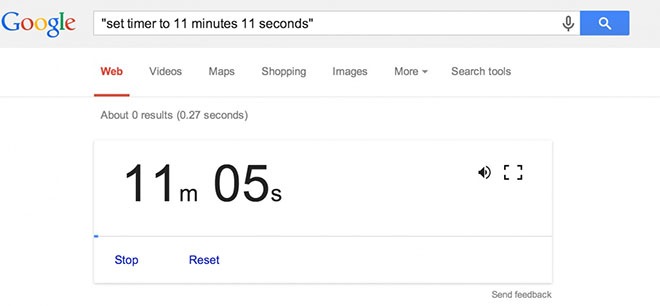
1. You can set Google as a timer
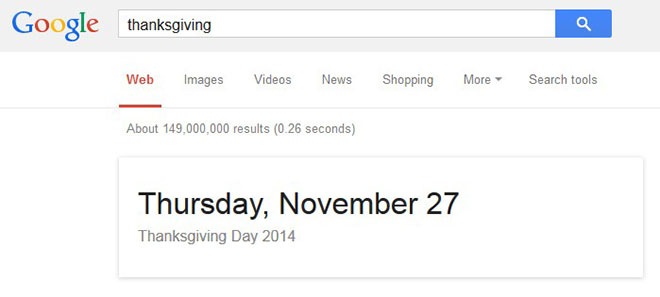
2. You can ask Google informations about festivities
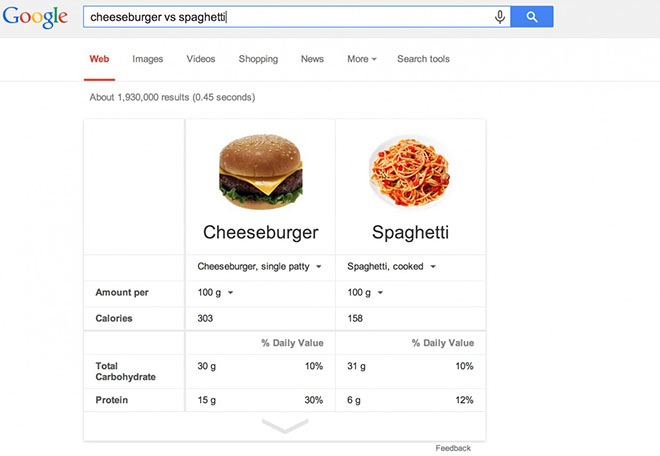
3. Compare foods’ nutritional facts
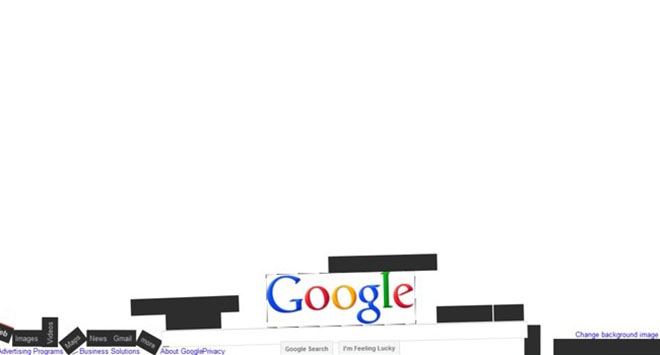
4. Type “Google gravity”, click “I’m feeling lucky” and see what happens
 5. You can use Google as a calculator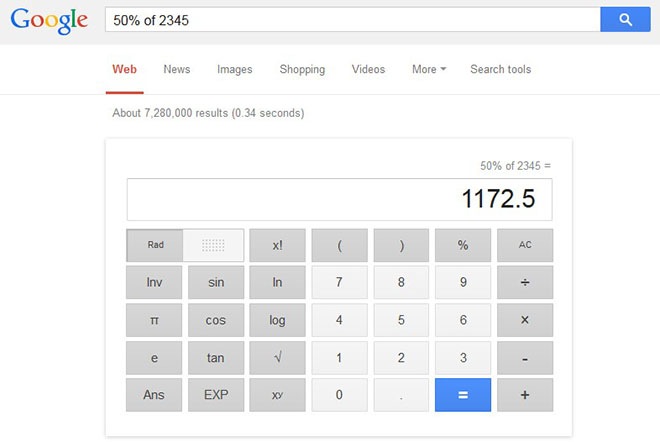
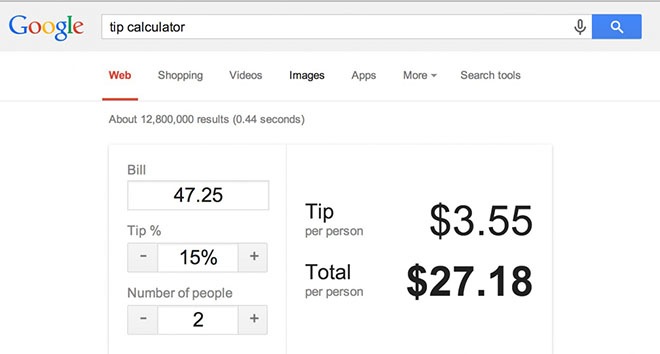
6. Even for calculating the right tip
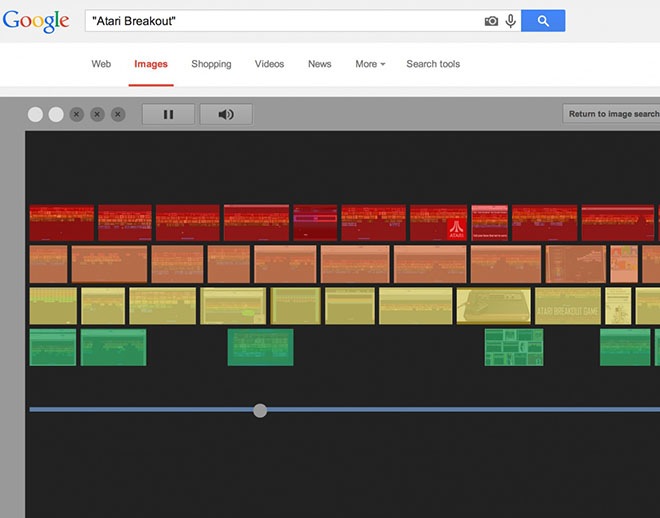
7. You can even play… Try to search for “Atari Breakout” into Google images and enjoy…
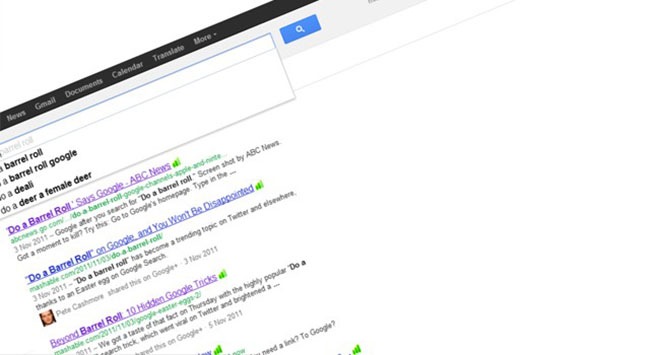
8. A little easter egg: type “do a barrel roll” and actually watch Google doing a barrel roll
9. Every time you include the word “anagram” in a search, Google will do anagrams for you
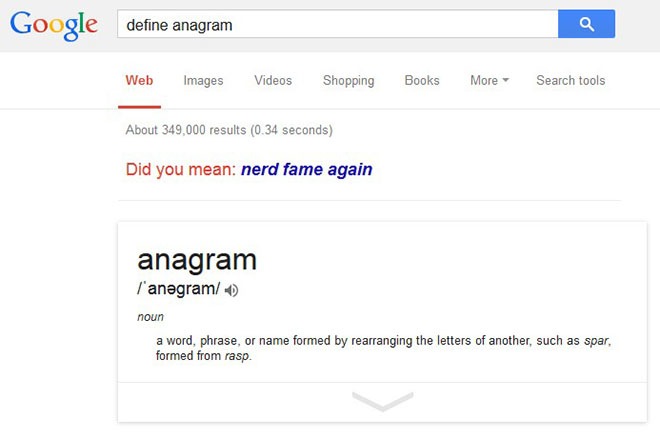
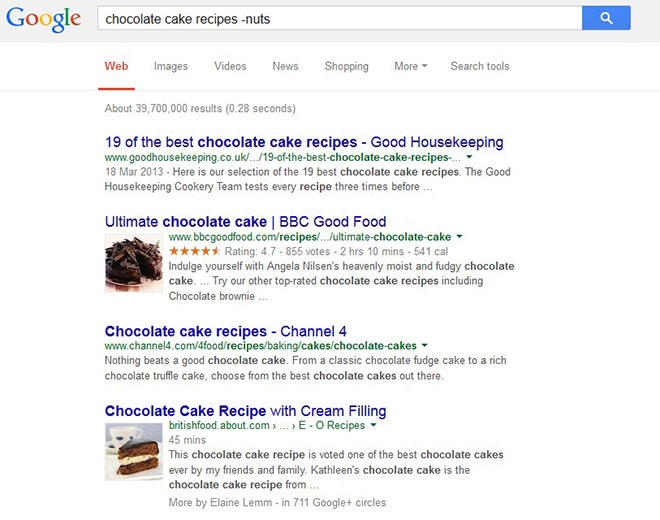
10. If you type a minus before a word, Google will exclude it from the search
11. Feeling lazy? Just click the microphone and do a vocal search

12. Use Google to stay up to date about your favorite tv series…
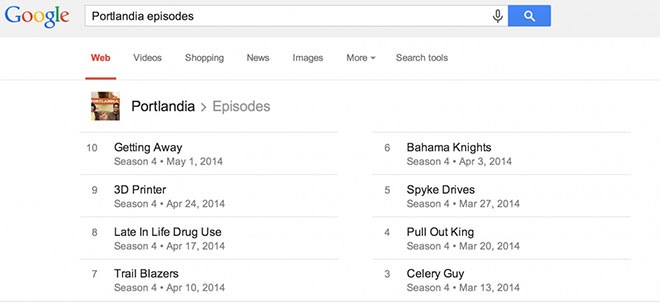
13. …and movies
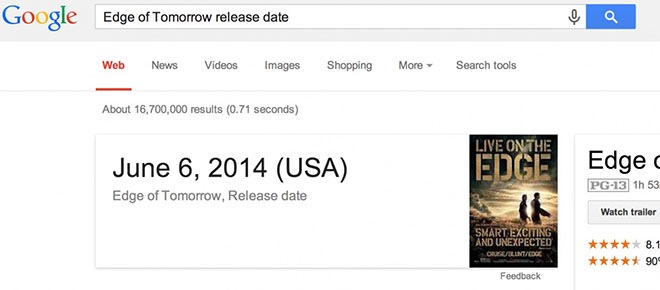
14. Google can give you informations about flights

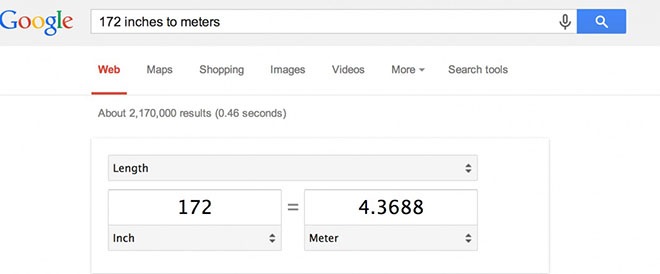
15. You can use Google to convert pretty much everything…
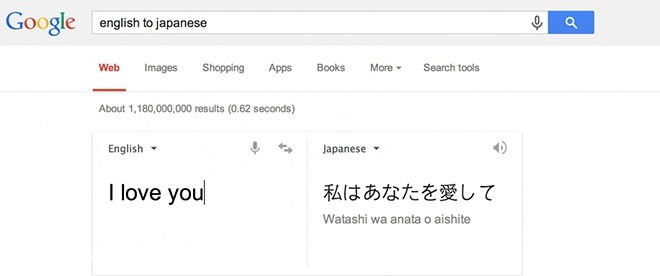
16. …and quickly translate
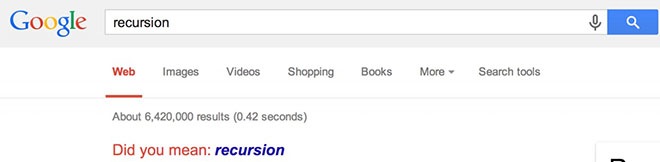
17. Try to search for recursion and get stuck into recursion
18. Another funny easter egg: type “tilt” and watch what happens

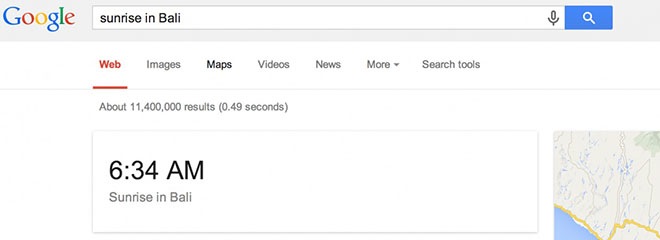
19. Stay informed about sunset and sunrise
20. Google can tell you the weather all over the world

21. Type Zerg rush and play defending your search results from Google’s o’s
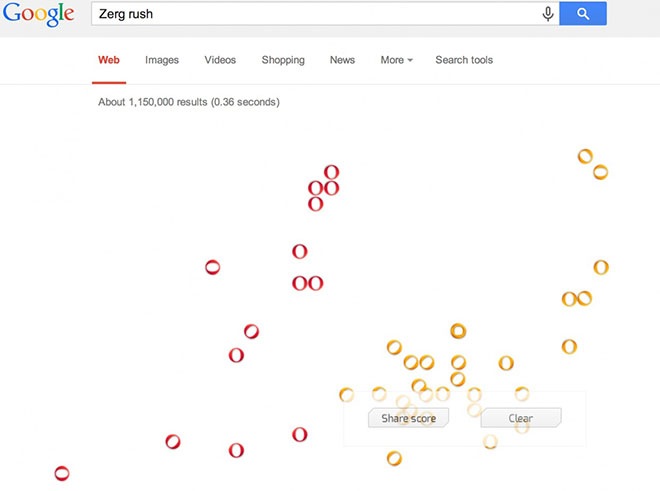 Did you know all of these tricks? Share this post with your friends by clicking the SHARE button below.
Courtesy:- http://justsomething.co/


